
3D Data Viewer
このコンテンツはまだ日本語訳がありません。
The 3D Data Viewer provides a unified environment to visualize and validate all representations of your 3D data. It supports point clouds, meshes, photospheres, and any additional formats included in your Data Bundle.
This viewer is used across the Prevu3D ecosystem to inspect data quality, explore capture coverage, and understand the spatial context of your scene directly in the browser.
Overview
Section titled “Overview”The viewer is designed to display the multiple visual formats that can exist inside a Data Bundle. You can seamlessly switch between views to analyze your data from different perspectives.
Supported formats include:
-
Point clouds
-
RealityMeshes
-
Photospheres
-
Future formats added through the platform’s evolving capabilities
This provides a consistent and comprehensive viewing experience regardless of how your data was captured or processed.
Opening the 3D Data Viewer
Section titled “Opening the 3D Data Viewer”You can open the 3D Data Viewer directly from the RealityPlatform.
There are two ways to access it:
-
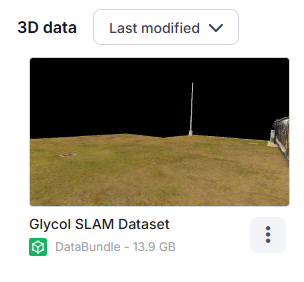
Double click a Data Bundle to open it in the viewer.
-
Right click a Data Bundle and select “View Dataset”.
The viewer will load all available representations in the bundle, and you can begin navigating or validating your data immediately.
Navigation Modes
Section titled “Navigation Modes”360 Degree Picture Navigation
Section titled “360 Degree Picture Navigation”If photospheres are available, you can enter the 360 degree picture view to navigate capture positions and inspect visual details.
You can:
-
Click a photosphere to enter it
-
Transition between photospheres by selecting them in the 3D scene
-
Review lighting, texture quality, and station placement
Perspective Navigation Mode
Section titled “Perspective Navigation Mode”You can switch to a free navigation mode to explore point clouds, meshes, or other 3D representations.
This mode allows you to:
-
Fly through the environment
-
Inspect density, surface fidelity, and alignment
-
Validate completeness and data quality
Reset Viewpoint
Section titled “Reset Viewpoint”Select the Home icon to return to the default camera position.
Switching Between Representations
Section titled “Switching Between Representations”The viewer allows you to switch between different representations of the same dataset. You can view:
-
Point cloud
-
Mesh
-
Photospheres
-
Any other supported formats in the Data Bundle
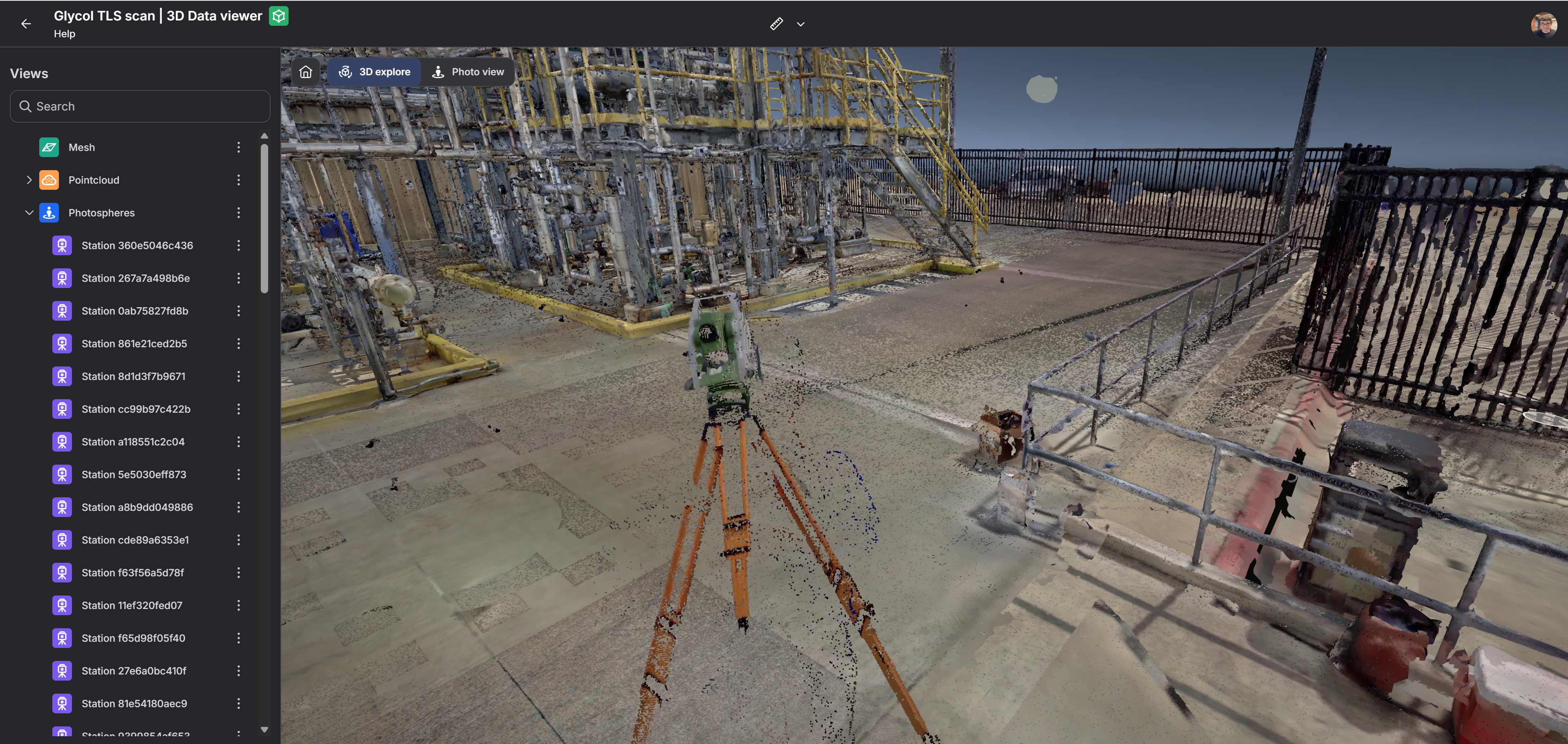
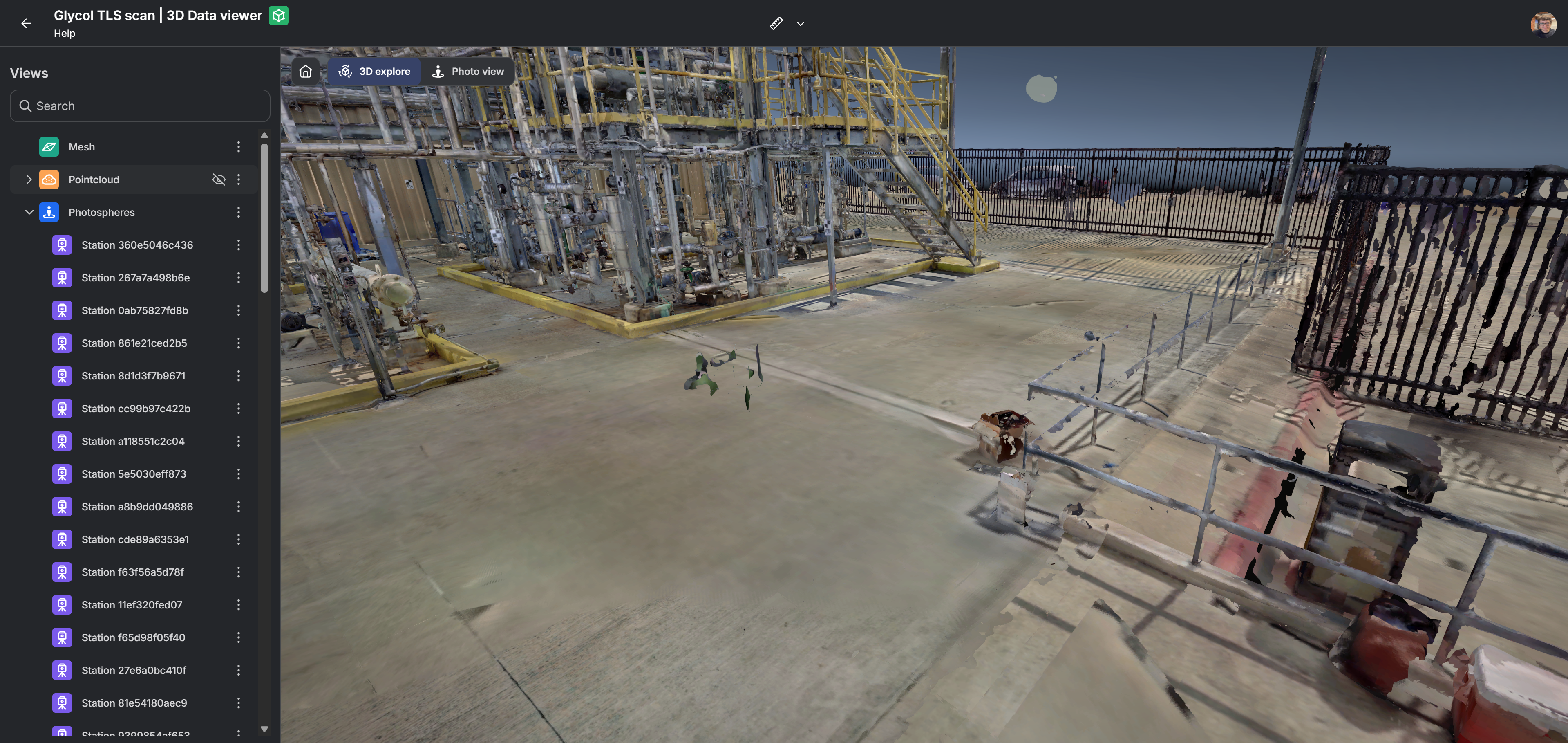
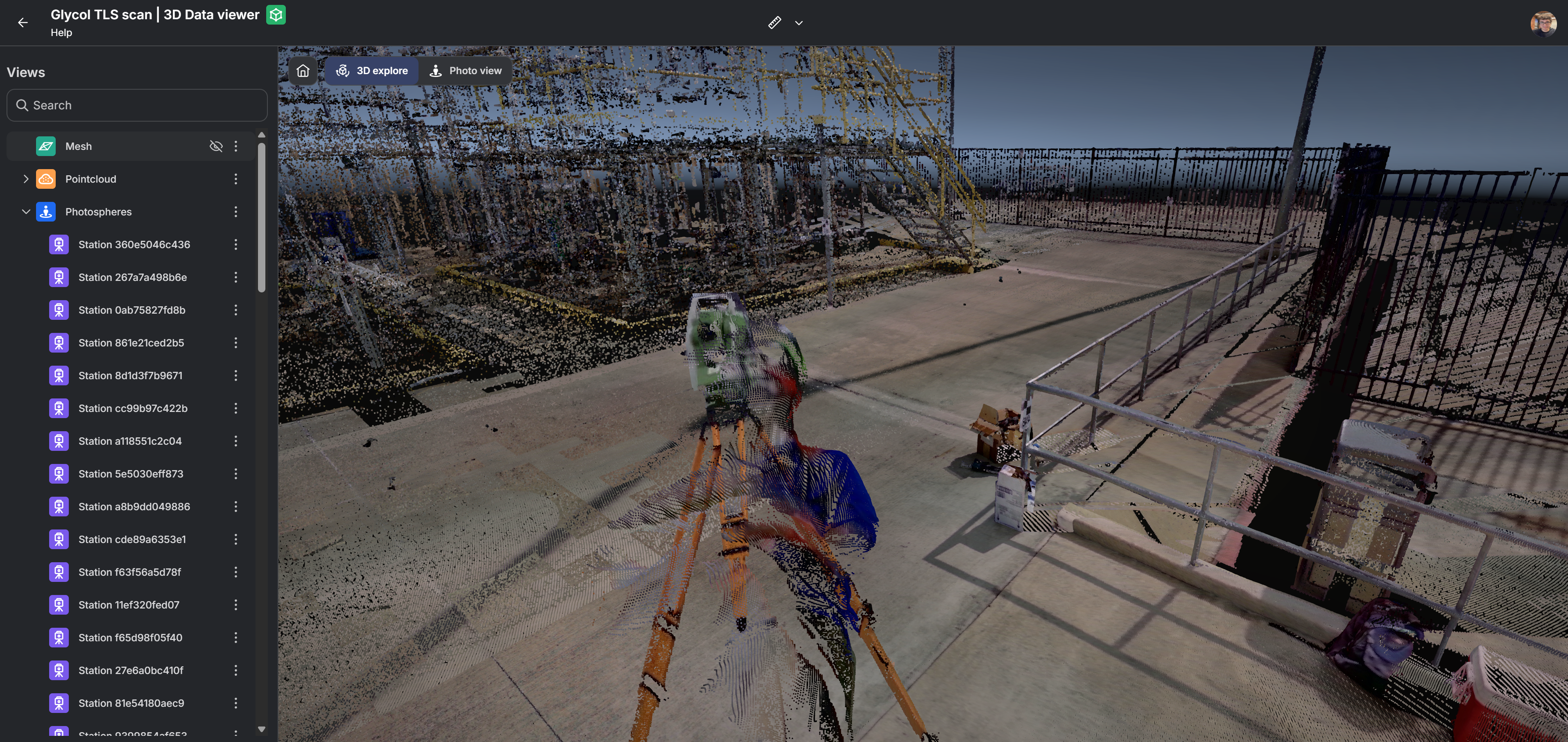
Switching views is immediate and keeps your orientation in the scene, allowing smooth comparison. You can also enable multiple visual representation at the same time.
Example with both “Pointcloud” and “Mesh” representation at the same time.
Example with only “Mesh” representation.
Example with only “Pointcloud” representation.
Measurement Tools
Section titled “Measurement Tools”The 3D Data Viewer includes the same measurement capabilities available in RealityTwin, allowing you to take quick and accurate measurements directly inside your 3D data.
You can access the measurement tools from the viewer toolbar. These include:
-
Simple distance measurement
-
Area measurement
-
Coordinate inspection
-
Diameter measurement
-
Orthogonal measurement
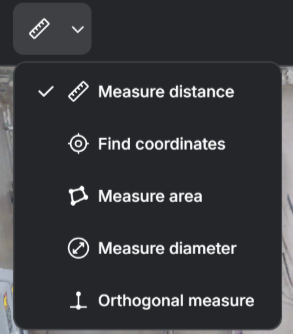
All measurement actions work the same way as in RealityTwin. For detailed instructions on how to use each tool, see the Measurement Tools in RealityTwin article.
Powered by the Data Bundle
Section titled “Powered by the Data Bundle”The 3D Data Viewer loads content using the Data Bundle, a unified container that stores:
-
Raw inputs such as E57, LAS, images, and videos
-
Optimized outputs such as point cloud tilesets, meshes, and photospheres
-
Additional and future ready representations
Because all these formats share the same structure and metadata, the viewer ensures:
-
Consistent visualization across all formats
-
Accurate alignment between point cloud, mesh, and images