
Navigating the Twin
The RealityTwin allows you to explore your space with multiple navigation modes.
Navigation Menu
Section titled “Navigation Menu”Located in the top-left corner of the screen, the Navigation Menu gives you access to various navigation modes:
-
Fly
-
Third person
-
Photosphere
-
Home

Fly Mode (default)
Section titled “Fly Mode (default)”This is the default state that allows you to use the tools and all the features of the application.
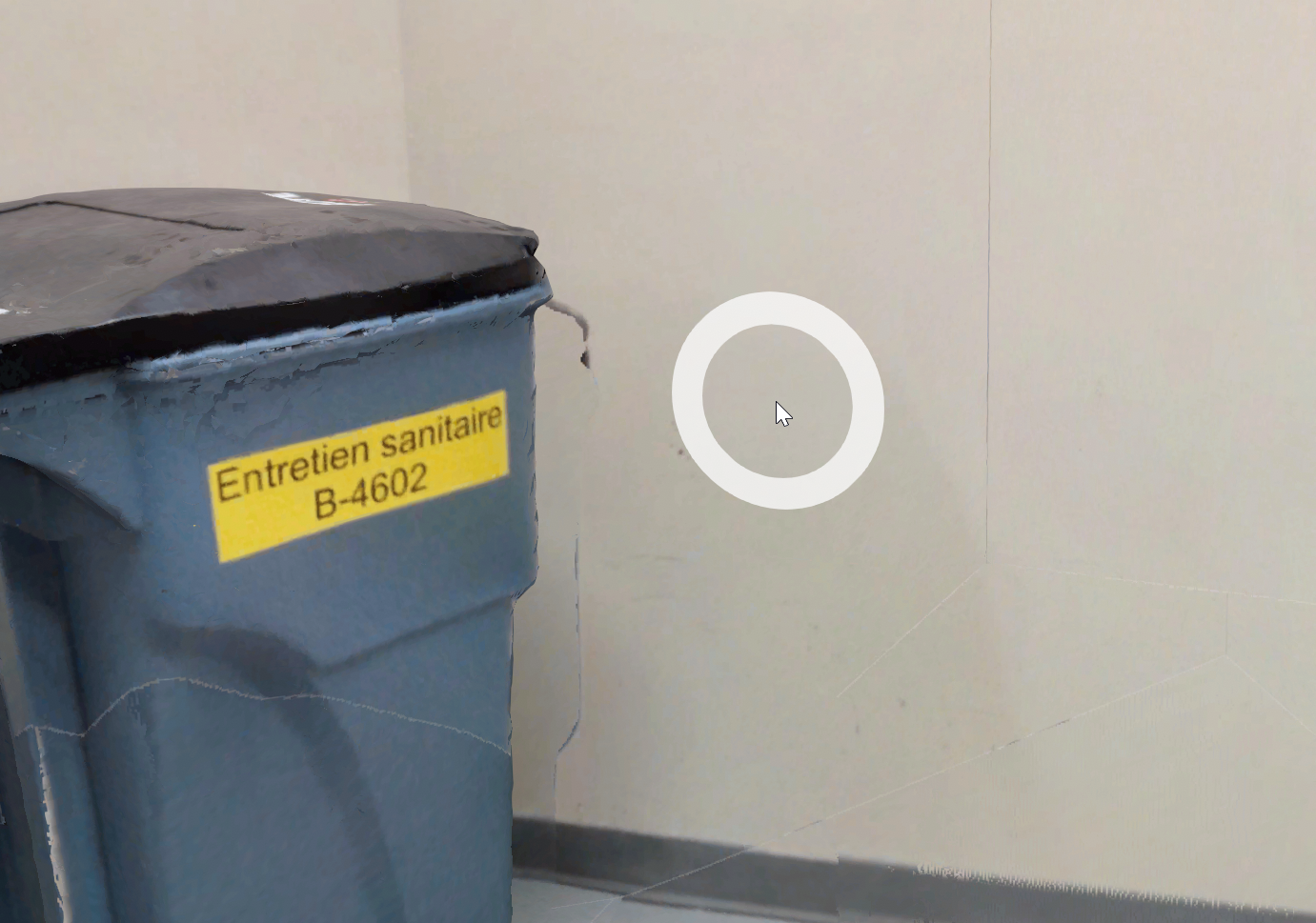
You may navigate in the environment using the navigation circle that appears under your mouse. To teleport somewhere, simply mouse click on the spot of the environment you want to teleport to. You may also rotate the view by holding and dragging the mouse cursor.
Controls
Section titled “Controls”| Action | Input |
|---|---|
| Teleport |  (mouse left double-click) (mouse left double-click) |
| Rotate the view | Hold and move mouse (mouse left-click) |
| Rotate around pivot |  Hold and move mouse (mouse right-click) Hold and move mouse (mouse right-click) |
| Move/panning |  Hold and move mouse (mouse middle click) Hold and move mouse (mouse middle click) |
| Zoom in/out | (mouse scroll) |
| Move | 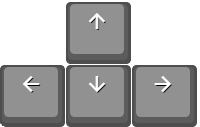 or or 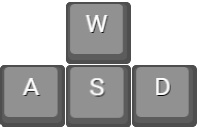 |
| Move faster |  |
| Move up |  |
| Move down |  |
Third Person Mode
Section titled “Third Person Mode”Third Person Navigation allows you to explore the environment using your avatar as a visual reference within the 3D space. Instead of navigating from a first-person perspective, the camera follows your avatar from behind.
You can activate Third Person mode from the Navigation Menu located in the top-left corner of the screen.
| Action | Input |
|---|---|
| Walk towards | (mouse left double-click) |
| Rotate the view | Hold and move mouse (mouse left-click) |
| Zoom in/out | (mouse scroll) |
| Move | or |
| Move faster | |
| Jump | 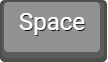 |
| Crouch |  |
Photospheres Mode
Section titled “Photospheres Mode”Photosphere Navigation allows you to explore the site through high-resolution 360° imagery captured by scanners. It’s ideal for inspection, review, and providing realistic visual context tied to specific capture stations.
Photospheres are not just static images, they fully support:
-
RealityAsset & 3D objects overlays
-
Measurements for quick verification
-
Annotations to document and share insights
These elements blend directly into the imagery, creating a rich and realistic environment that feels immersive and interactive.
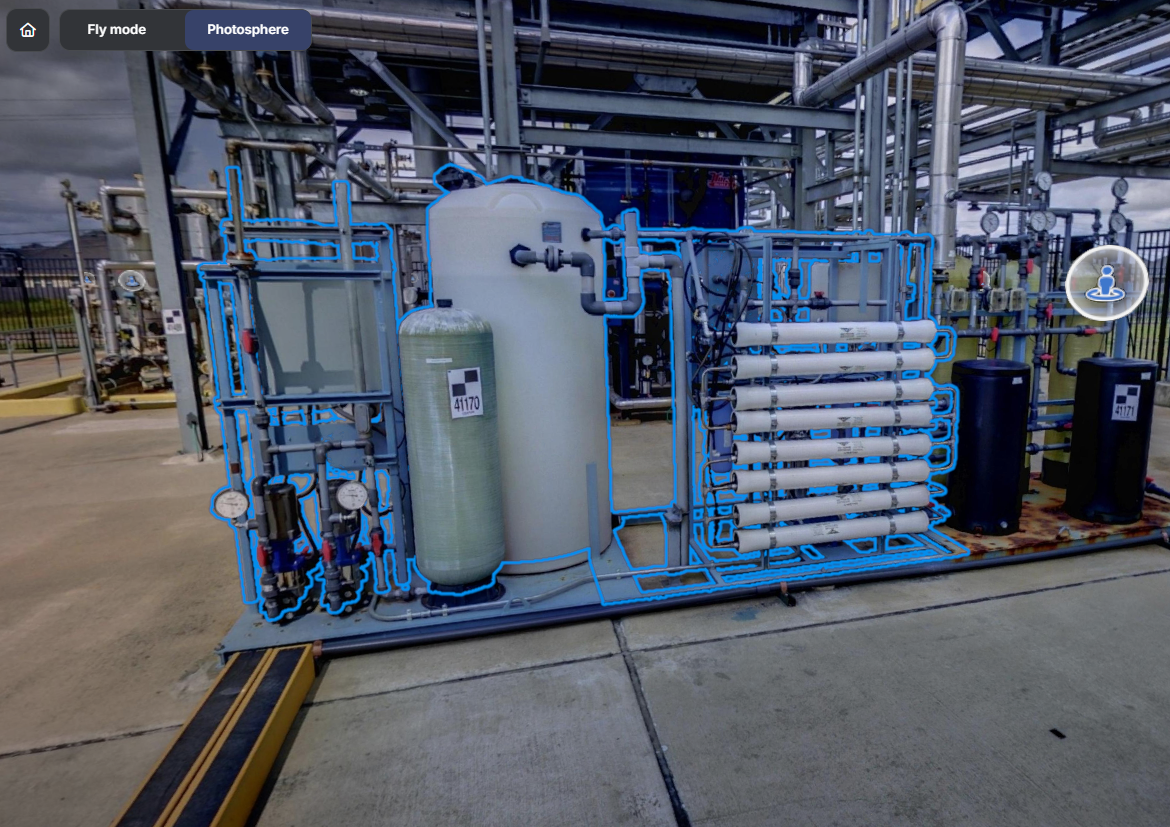
Movement in Photosphere mode is limited to scanner station positions. You can jump between them by selecting visible hotspots or station markers.
Controls
Section titled “Controls”| Action | Input |
|---|---|
| Jump to another station | (mouse left-click) |
| Rotate view | Hold and move mouse (mouse left-click) |
Minimap
Section titled “Minimap”The Minimap in RealityTwin is a spatial awareness tool located in the lower-left corner of the interface. It provides a real-time top-down view of your Twin, helping you maintain orientation and better understand your position within the larger environment.
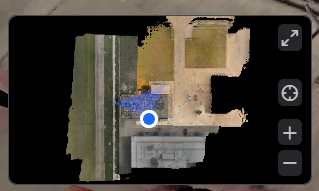
You can toggle the minimap’s visibility from the View Menu:
-
Open the View Menu (located at the top right of the interface).
-
Enable or disable the Minimap based on your preference.