Visual Effects
RealityPlan offers multiple video effects that you can use to enhance your environment.
Easy effects (presets)
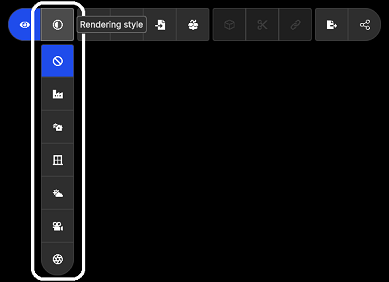
Section titled “Easy effects (presets)”Before exploring advanced effects, it’s helpful to experiment with the app’s various rendering style presets. Simply click on your preferred preset in the rendering style section of the toolbar. Some presets may work better for indoor or outdoor environments, so try different options to see what best suits your project.
Advanced effects
Section titled “Advanced effects”First, you need to access the application settings and click on the “Effects” tab. From there, you’ll be able to see and manage the available visual effects applied on the environment.
Available effects
Section titled “Available effects”Skybox
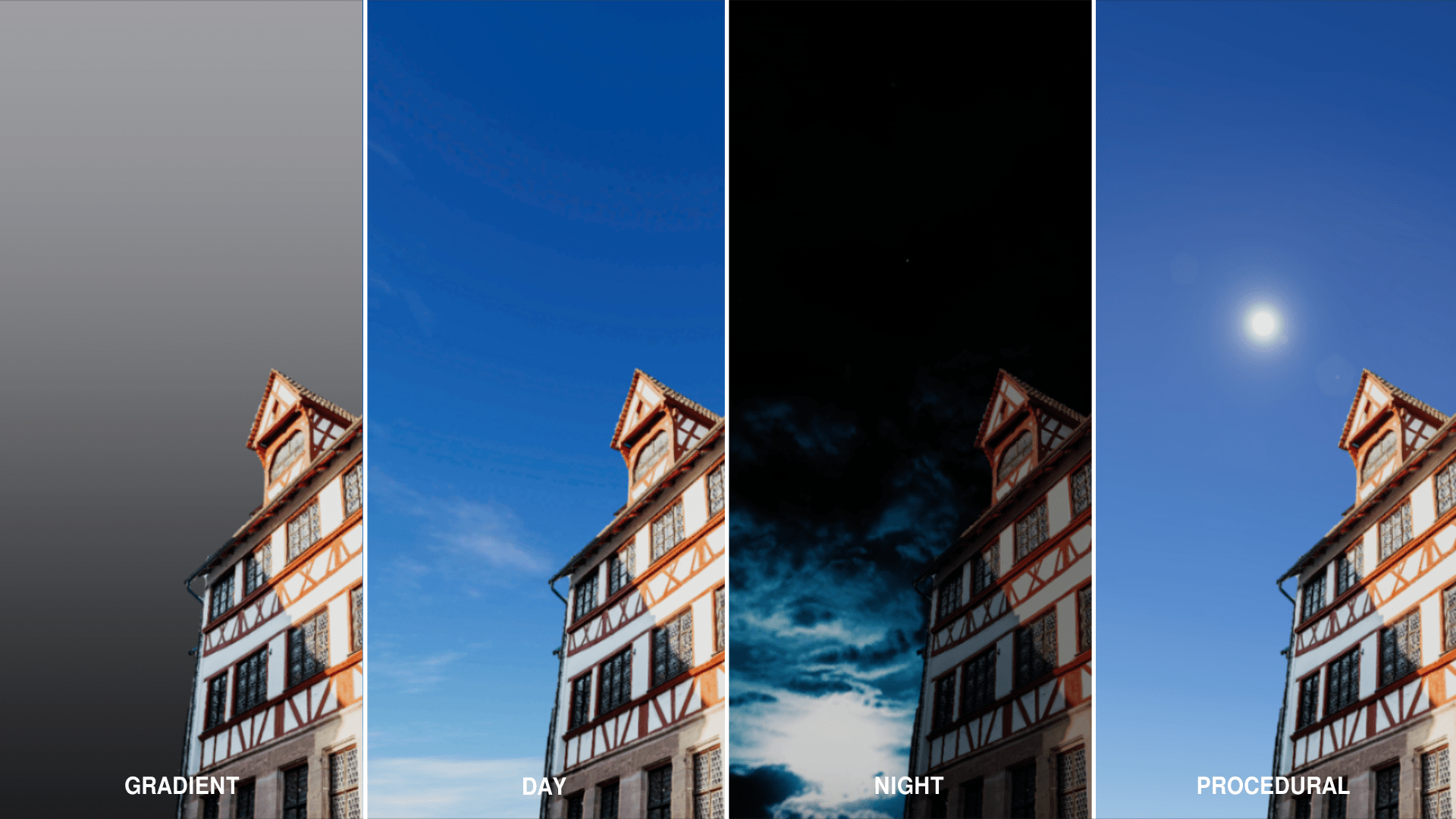
Section titled “Skybox”The skybox effect is used to show a sky in order to achieved appropriate lighting conditions for any indoor or outdoor environment.
Ambient Occlusion
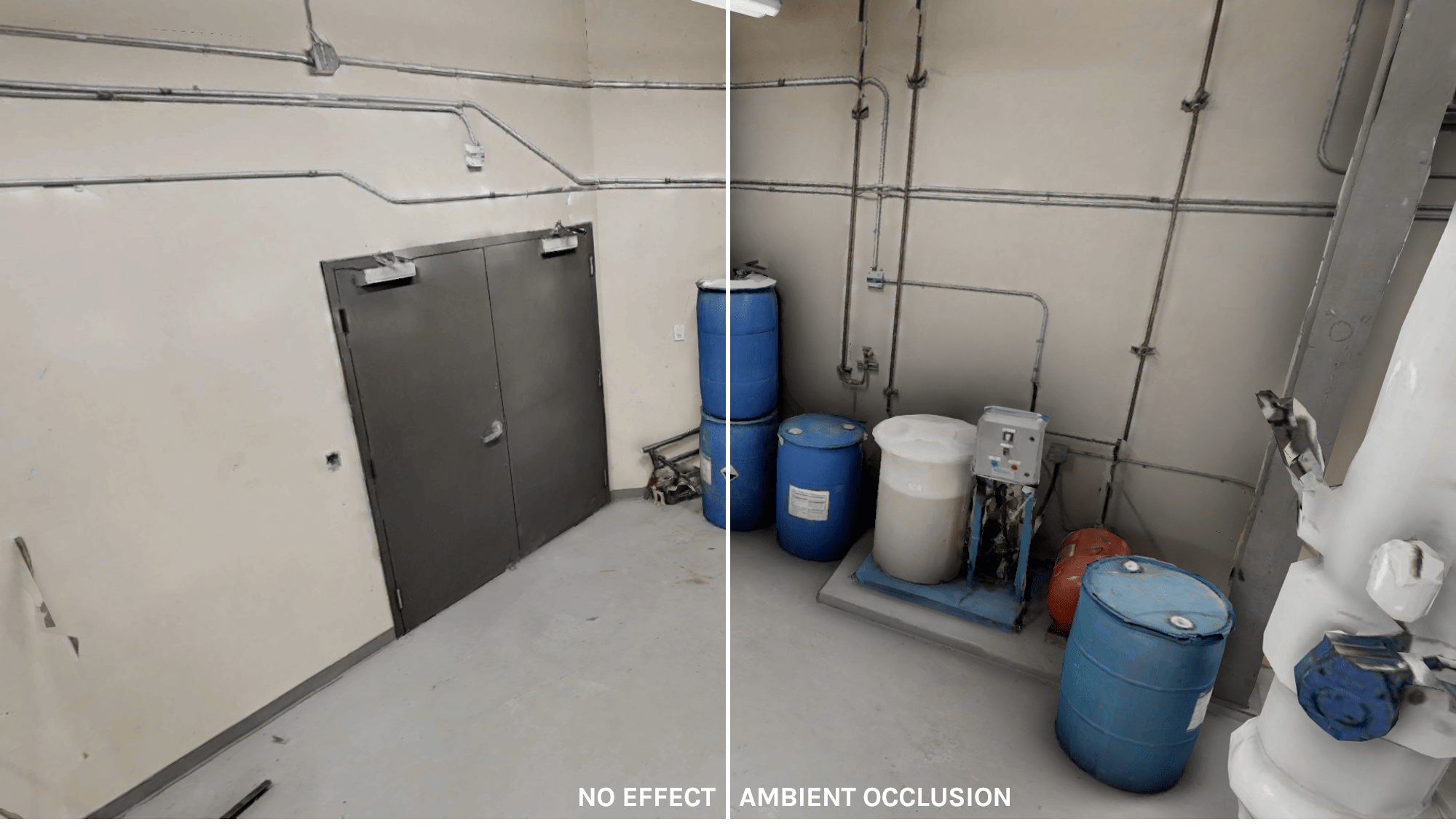
Section titled “Ambient Occlusion”The ambient occlusion post-processing effect is used to bring some dark areas in surfaces, holes, creases and intersections when they are close each other.
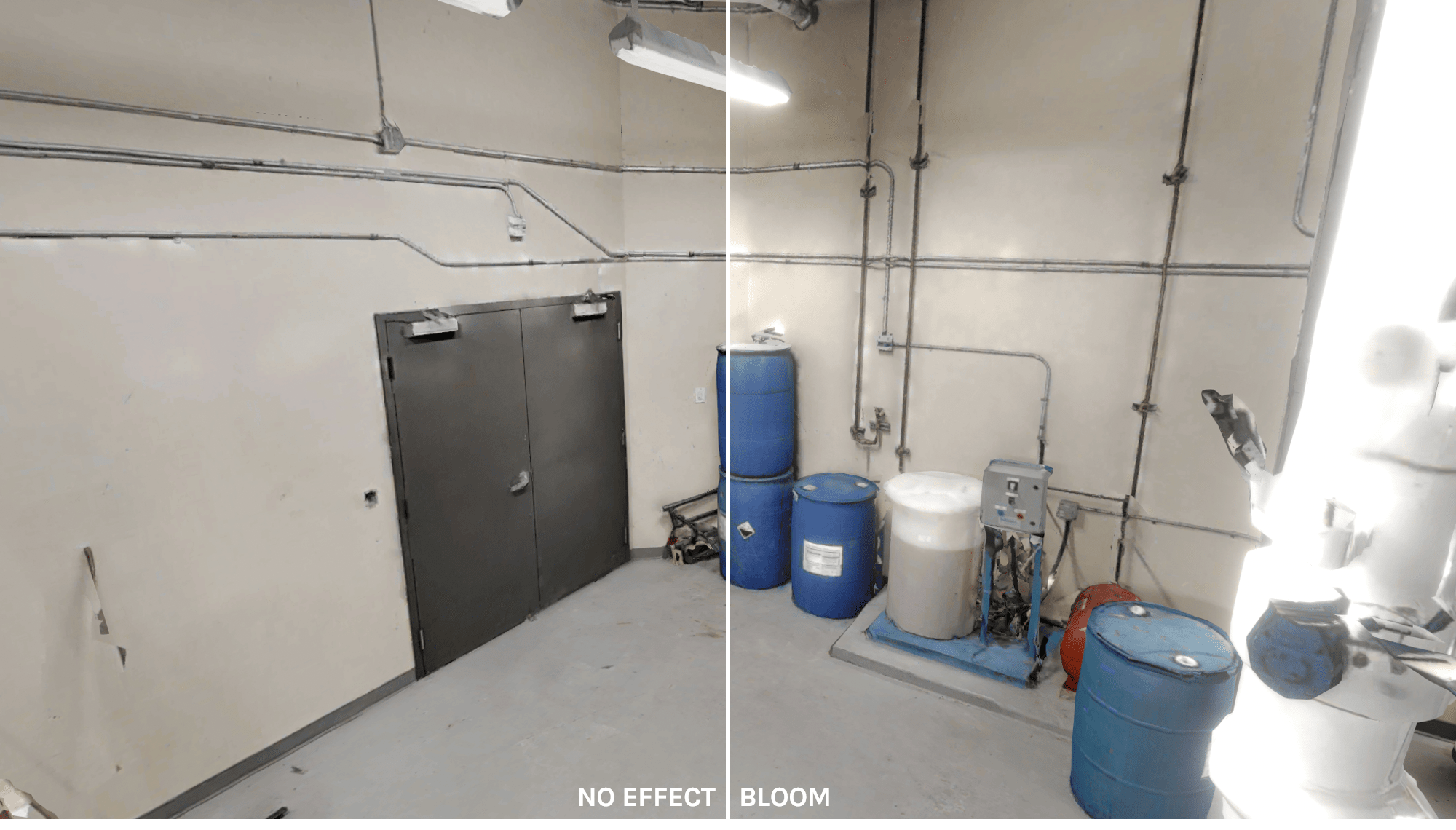
The bloom effect is used to dazzle the camera by creating light edges extending from bright boundary areas in an image.
Color Grading
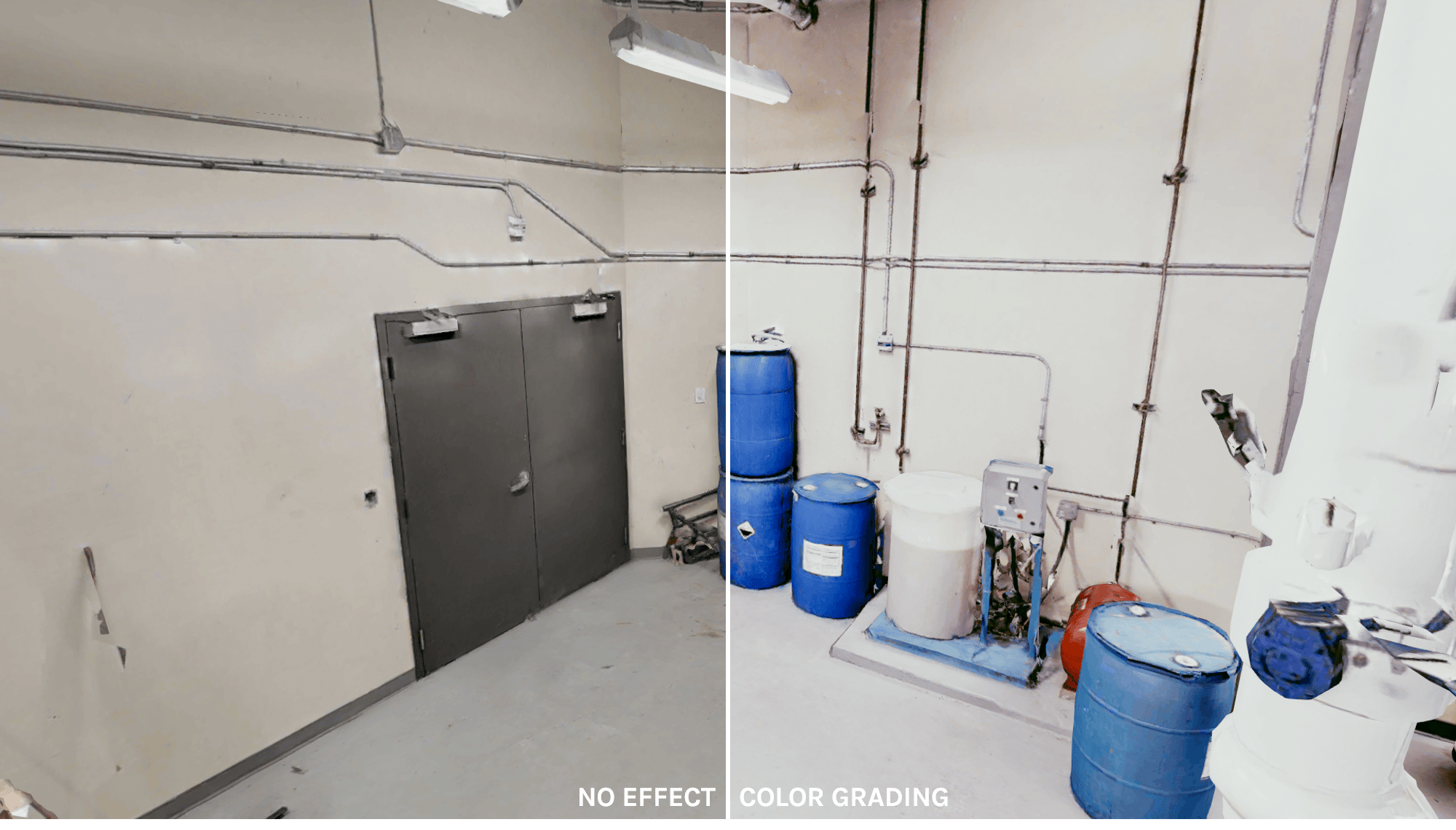
Section titled “Color Grading”The Color Grading effect is used to correct, modify and improve images colors and luminance that the software creates.
Depth of Field
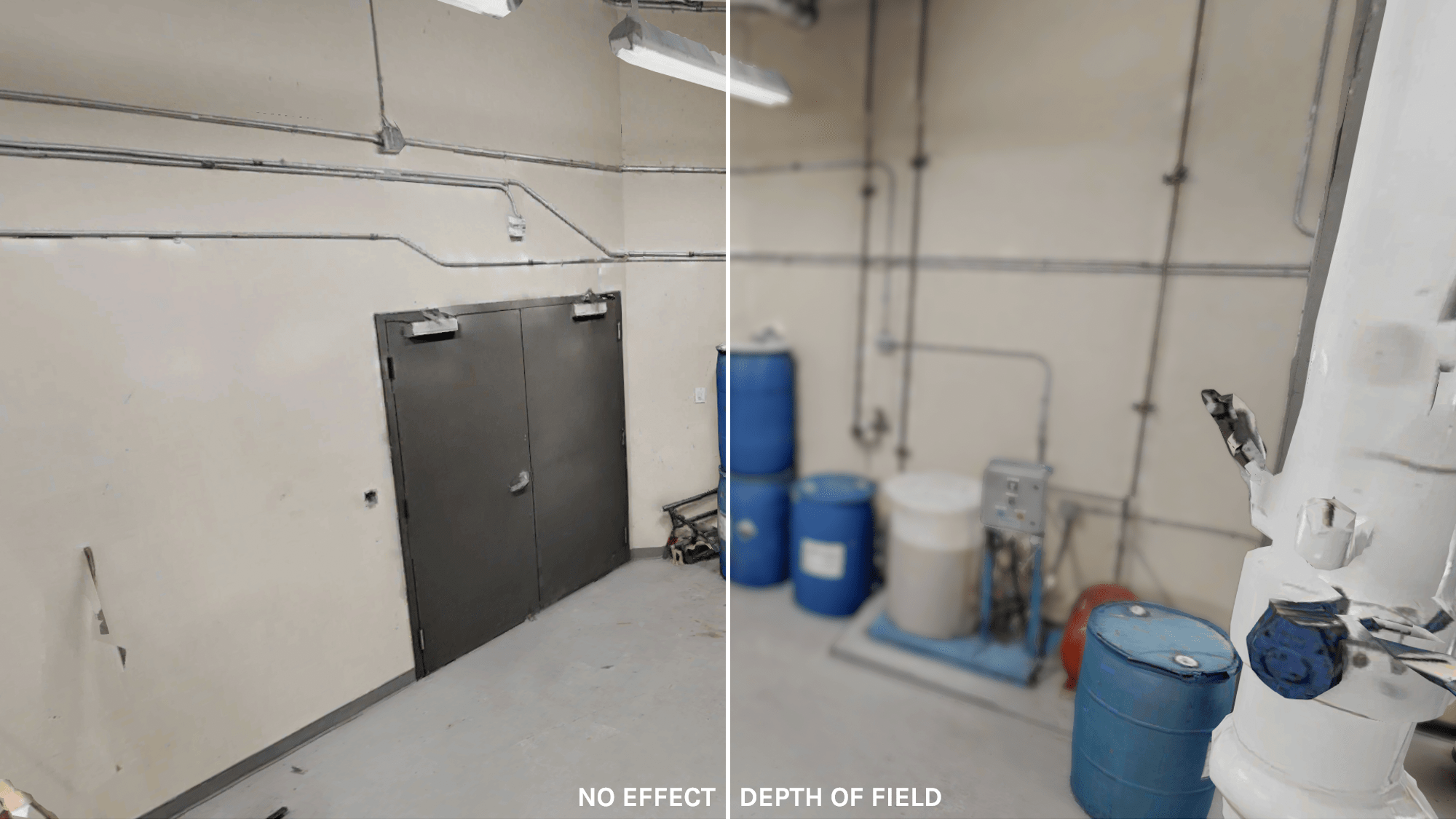
Section titled “Depth of Field”The Depth of Field effect is used to create a fake bokeh also called background blur to simulate the camera lens focus.
Vignette
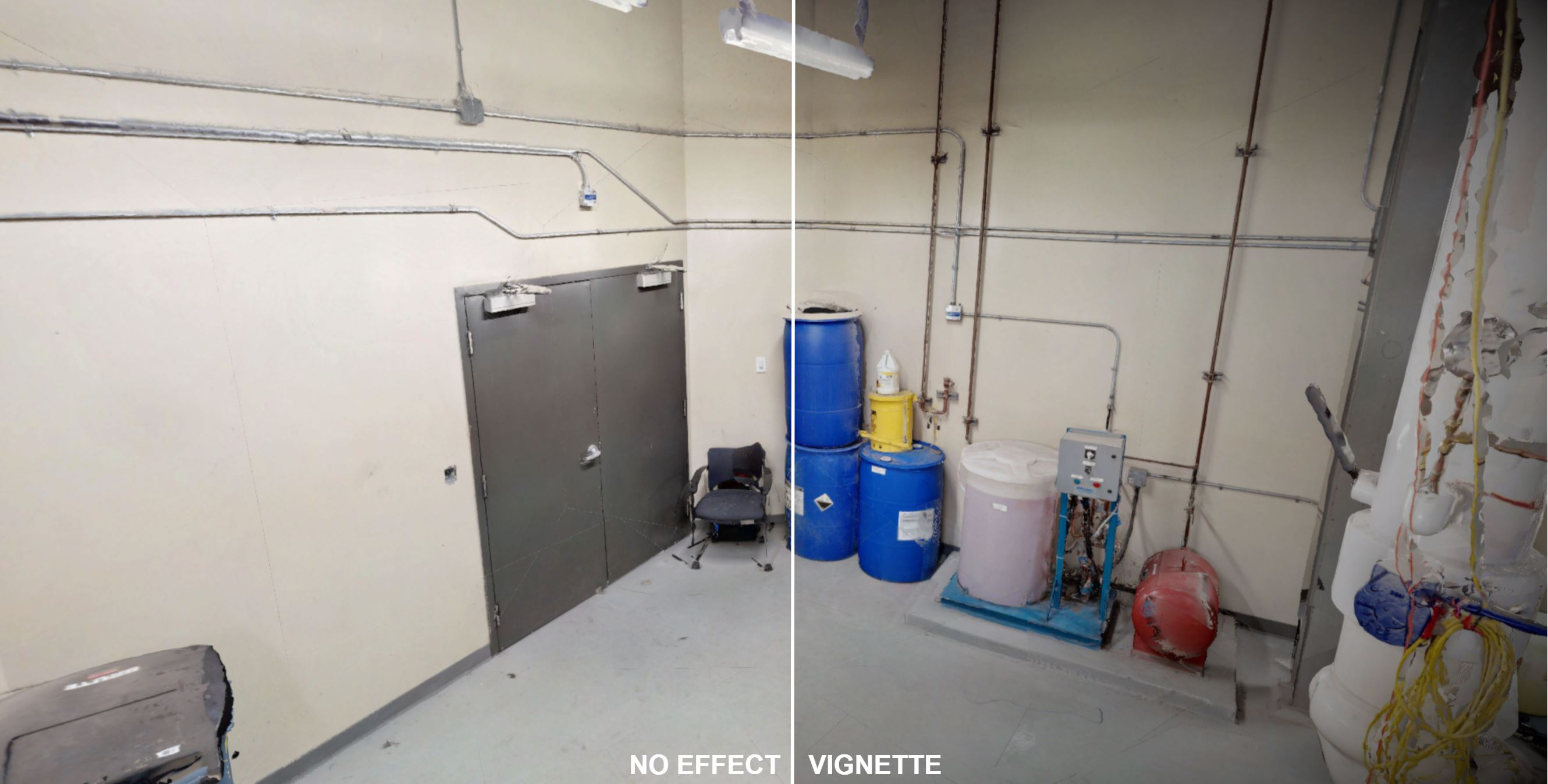
Section titled “Vignette”The Vignette effect adds a soft dark fade to the edges of the screen
Double Sided Environment
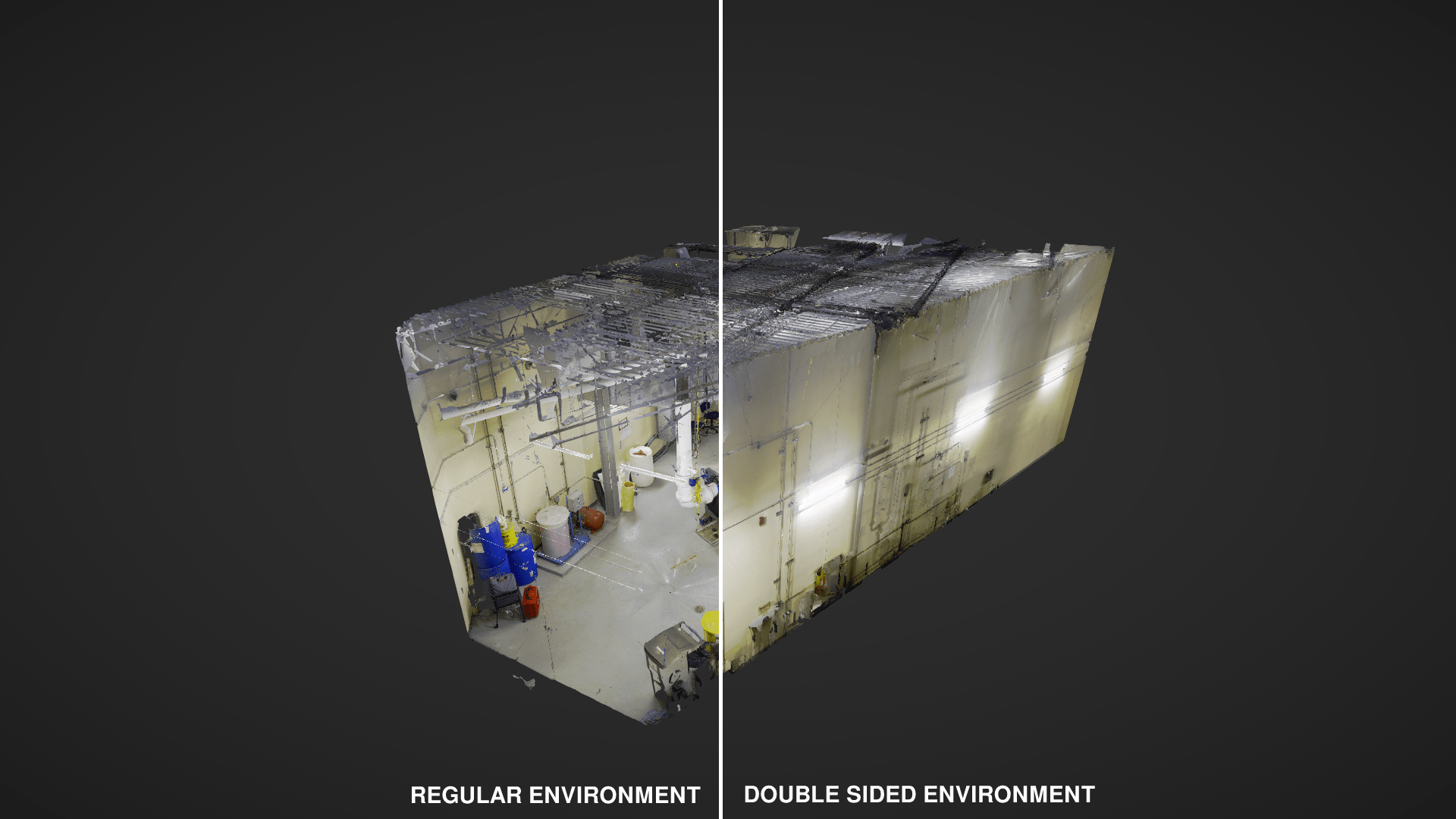
Section titled “Double Sided Environment”The double sided environment allows you to enable two sided meshes. Normally a mesh will look transparent when looking from the outside. Two sided environments apply a texture on the outside of the mesh as well.
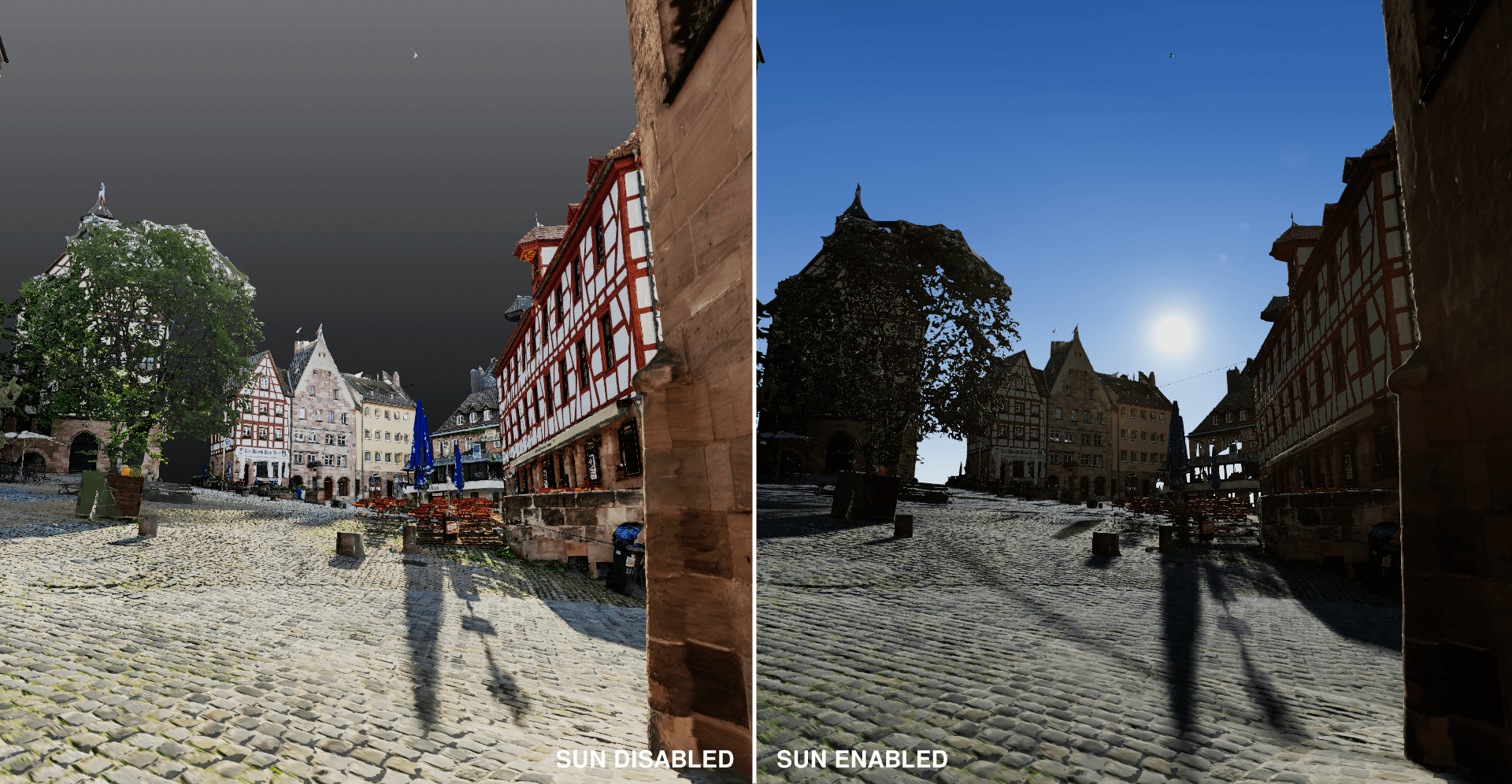
The Sun effect can be used in conjunction to the procedural skybox to create a realistic outdoor setting. The sun can be moved horizontally and vertically and should also have shadows and outdoor lighting settings enabled.