
Object Animations
The object animation tool allows you to animate 3D objects freely in the environment, allowing you to assign paths for the objects to follow.
Creating a path
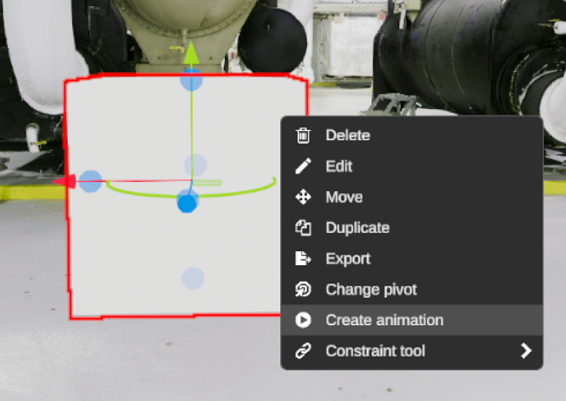
Section titled “Creating a path”To animate an object along a path, start by selecting the object you want to animate. Then, right-click on the object to bring up its contextual menu, and click on the Create Animation option to create the animation path for the object.
To add new waypoints, you can either click on the environment or press the spacebar. (Please note that this shortcut will not work in explore mode.)
Editing an animation
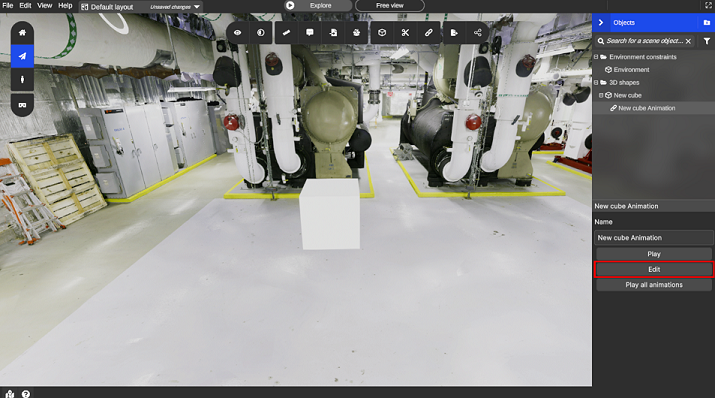
Section titled “Editing an animation”To edit an animation, you need to open the animation window first. The window should open automatically when you create a new animation. Alternatively, you can open it manually by clicking on the desired animation in the sidebar, and then selecting the Edit button that appears after you make your selection.
Add a new waypoint
Section titled “Add a new waypoint”You can add new waypoints to a path by either clicking on the edit path button, which adds new waypoints at the end of the path, or by double-clicking on an existing segment to insert a waypoint.
Edit a waypoint
Section titled “Edit a waypoint”You can select a waypoint by either clicking on it within the waypoints window, or by clicking on it within the scene. Once selected, you can move and rotate the waypoint as desired.
Edit the animation settings
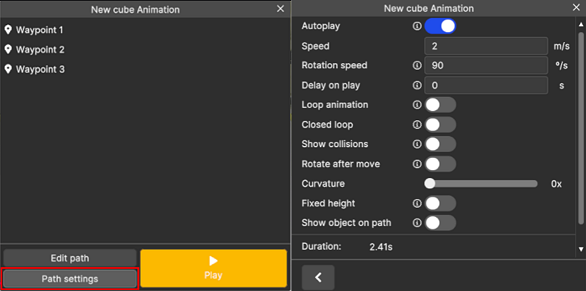
Section titled “Edit the animation settings”To modify the settings that determine how the overall animation will behave, you can click on the settings button. These changes can be made while the animation is running, allowing you to see the effects in real-time.
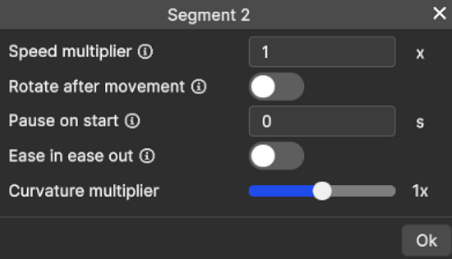
Edit a segment settings
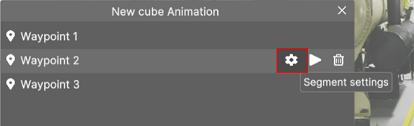
Section titled “Edit a segment settings”You can also modify individual segments in the path so that they act differently from the rest. For example, you can pause or accelerate specific segments to create variation in the animation.
Playing an animation
Section titled “Playing an animation”Animations will play automatically when you open your layout if they have the Autoplay option enabled (The option is enabled by default).
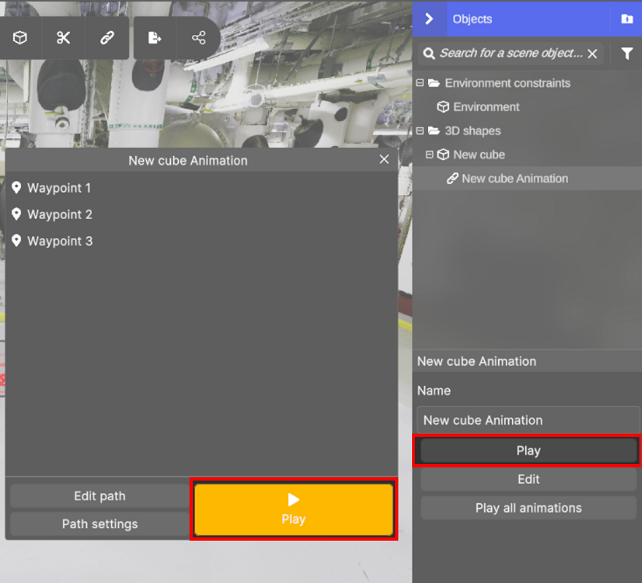
To play or pause an animation manually, you can click on the play/pause button in either the right-side menu or the animation window. Additionally, you can use the Play All Animations button to restart all active animations. If you only want to play an animation from a specific segment, you can click on the play button shown to the right of the waypoint in the animation window for ease of use.
Showing collisions
Section titled “Showing collisions”You may also visualize the collision of the object with the rest of the environment while the animation is running, by activating the Show collisions option.