
Import 3D from Sketchfab
If you need to access your Sketchfab models or are looking for a specific model, the import from Sketchfab tool is a fast way to access a massive library of 3d models quickly.
Setting up
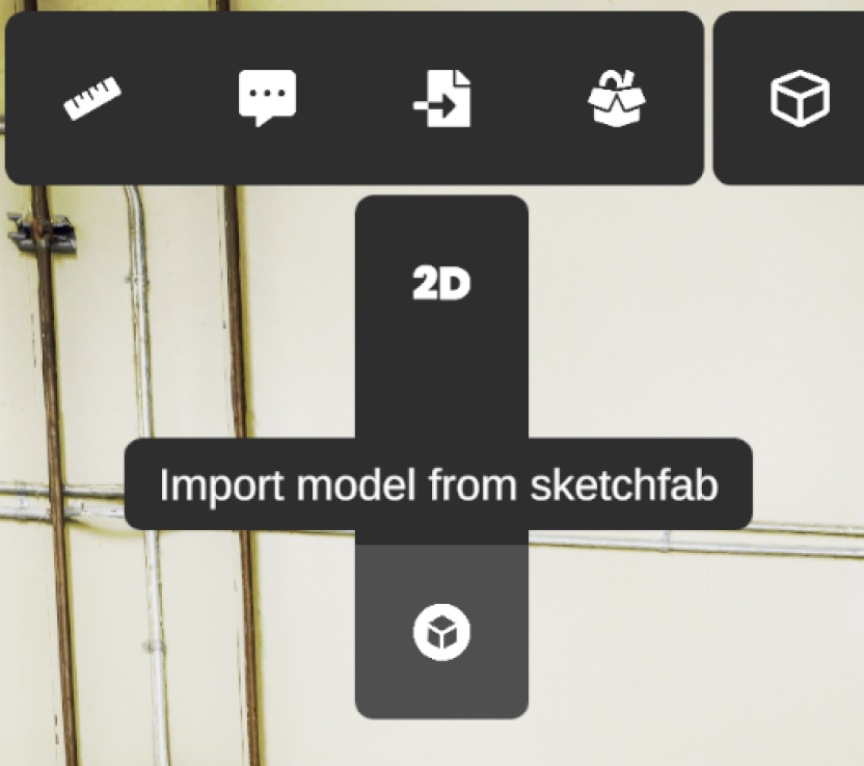
Section titled “Setting up”To access the tool click on the Import model from sketchfab option inside the Import 3D model tool.
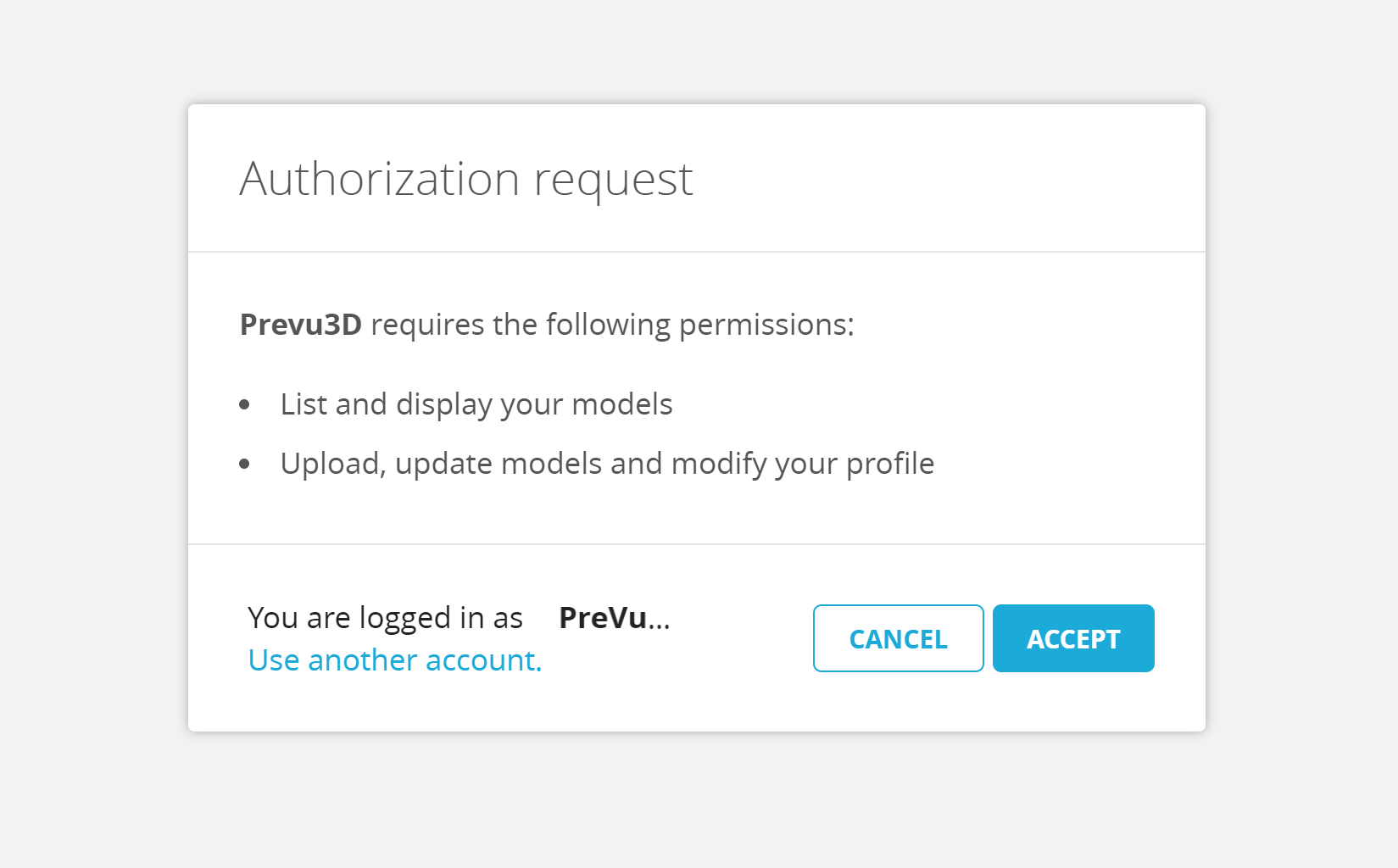
When opening the tool a browser window will open asking you to log in or register to sketchfab. Once logged in, you’ll be asked the permission to allow the RealityPlan app to access to your Sketchfab. After allowing it, you’ll be redirected to a success window.
Searching models
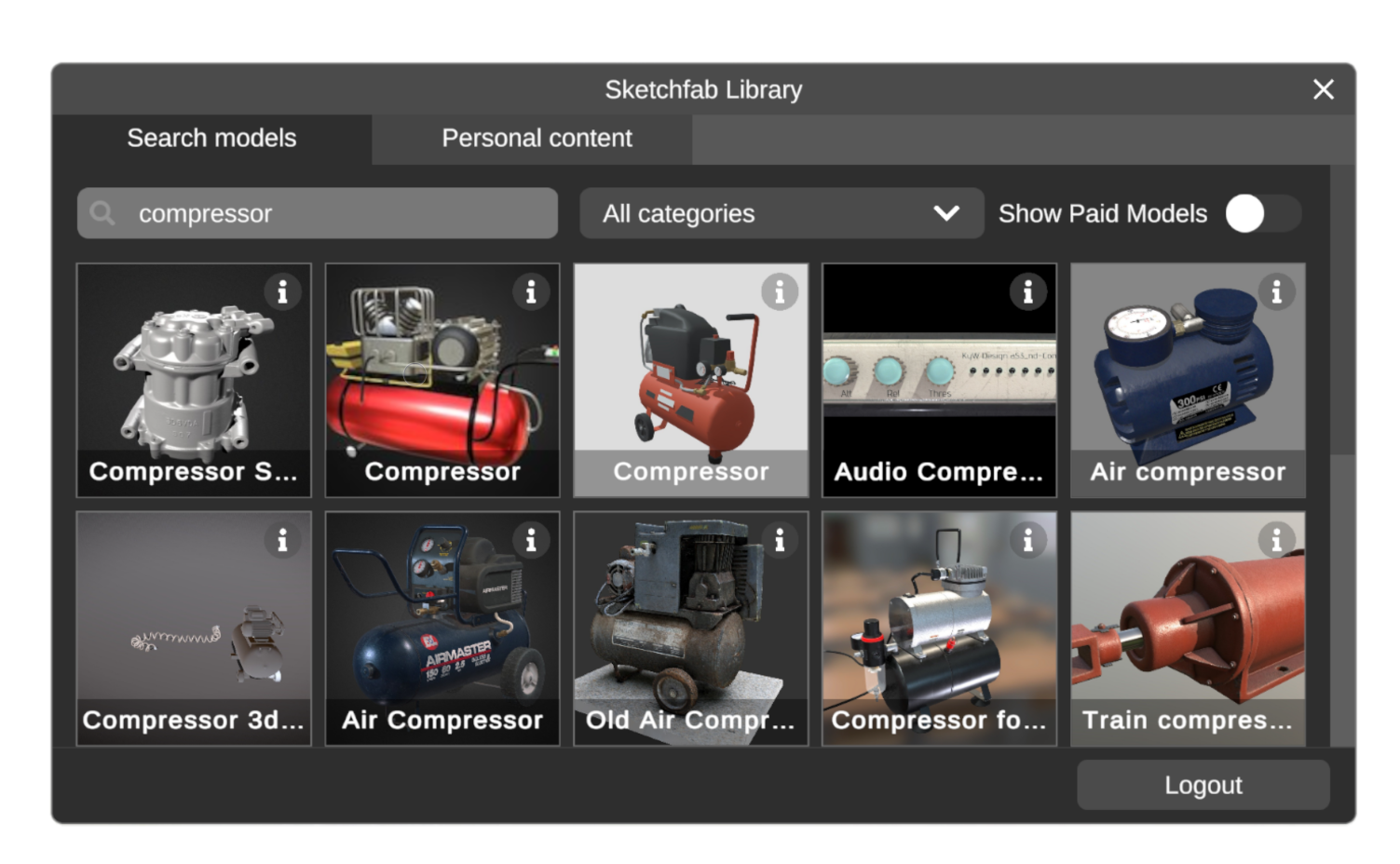
Section titled “Searching models”To search for a specific model use the search bar on top in the search model tab.
Once you’ve found a model that you like you can check more information about it by clicking on the info button. this will show you information like the description and the license for the model.
Advanced search options
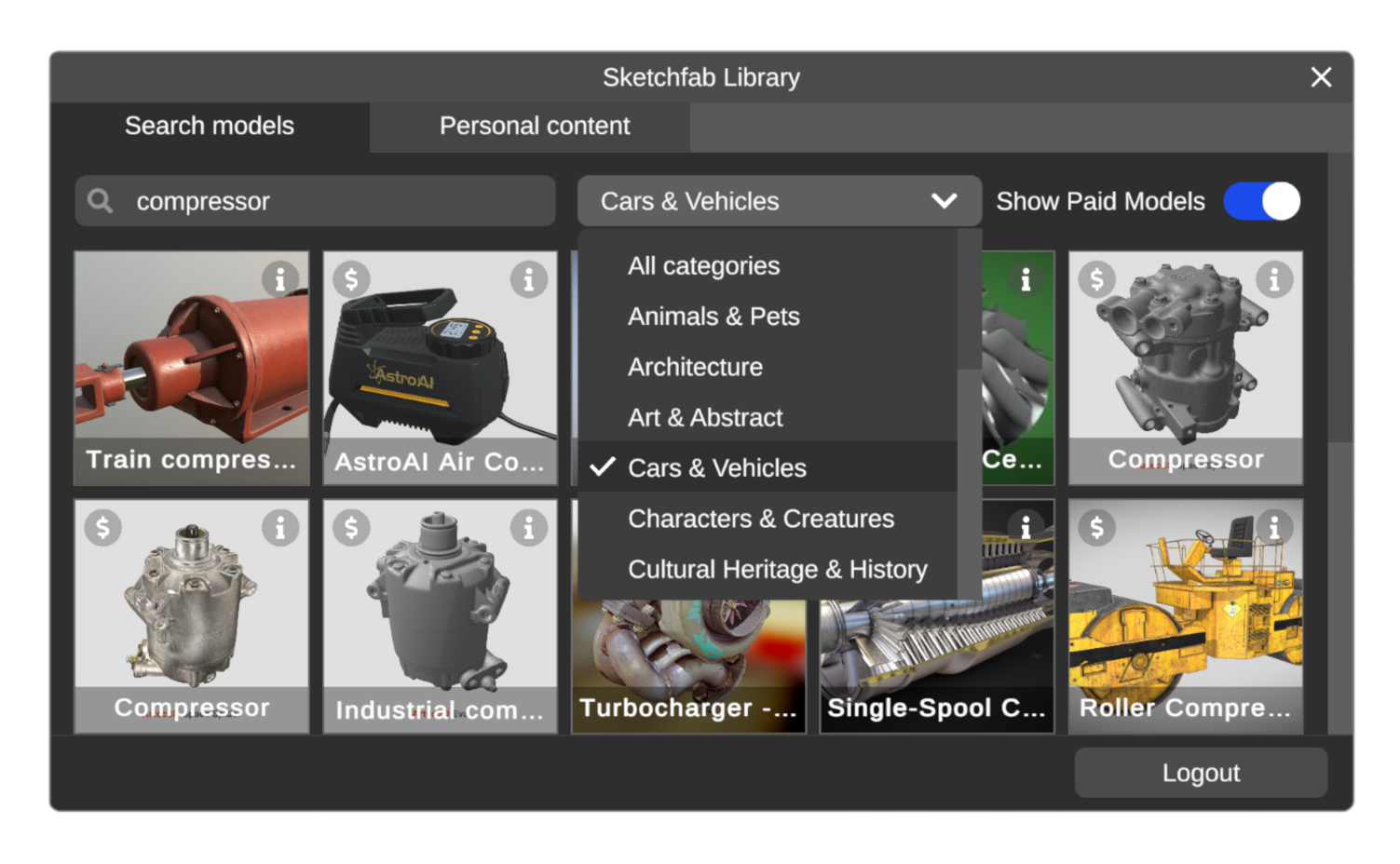
Section titled “Advanced search options”To filter the results further you can use the dropdown menu to the right to look for models in a specific category; in case the search results shown don’t fit your specifications, you may also use the toggle on the top right to show paid models.
Accessing your personal library
Section titled “Accessing your personal library”To access your personal models click on the “personal content” tab on the top bar of the window.
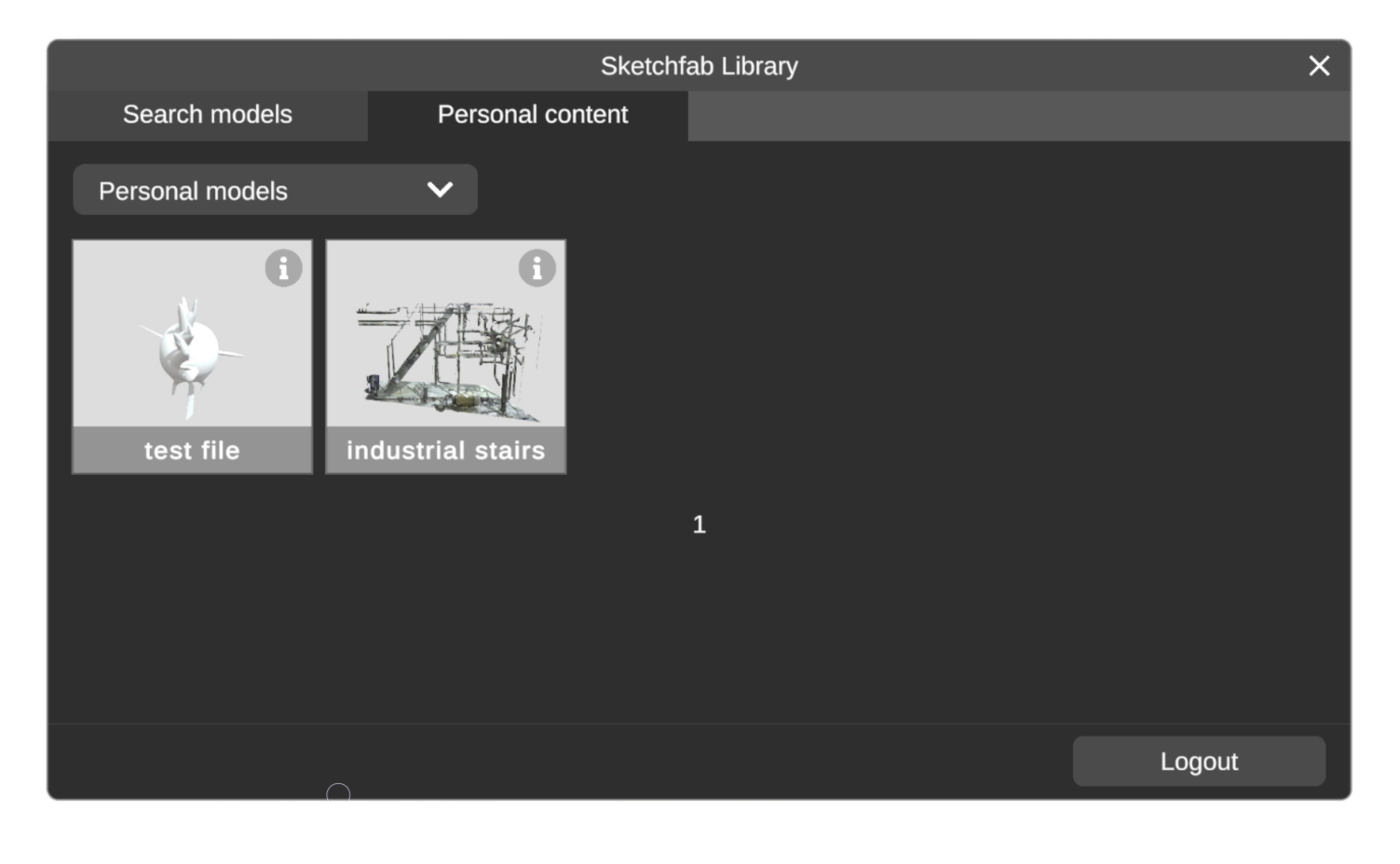
By default the personal models tab will show you the models you personally uploaded to sketchfab.