Adding & Editing Metadata
The metadata panel lets you enrich any entity in RealityTwin with structured information, attachments, and integration-linked data in a consistent and collaborative way.
The metadata panel is a unified system available across all entities in RealityTwin, including RealityAssets and Points of Interest (POIs). It provides a consistent way to enrich entities with structured data, ensuring that every element of your Twin is backed with contextual information.
Asset Types and Predefined Properties
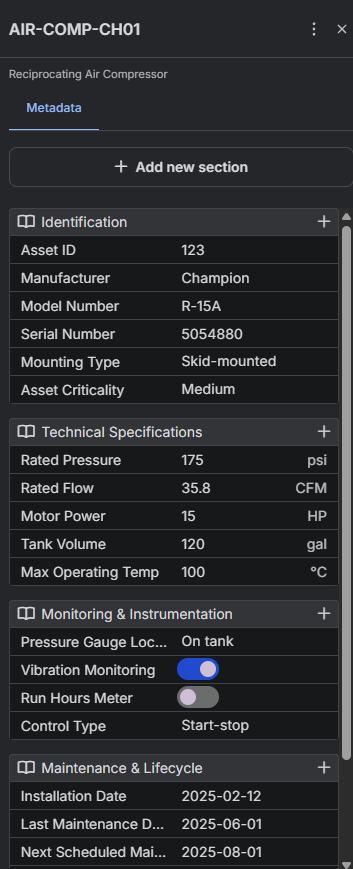
Section titled “Asset Types and Predefined Properties”When creating a RealityAsset, you can assign an Asset Type (see Configuring Asset Types for details).
-
Choosing an Asset Type automatically populates the entity with all predefined properties associated with that type.
-
These properties can then be filled with values by the user.
-
To modify the definition of an Asset Type (so the changes apply to all assets of that type), you must edit the Asset Type directly from the Asset Settings panel.
Ad-hoc Properties
Section titled “Ad-hoc Properties”In addition to predefined properties, you can add ad-hoc properties to a specific instance of an entity.
-
Ad-hoc properties only affect the selected instance.
-
They do not propagate to other entities of the same type.
You can add ad-hoc sections and properties directly from the metadata panel.
Supported Property Types
Section titled “Supported Property Types”The metadata panel supports a variety of property formats:
-
Number — numerical input (with unit support if configured).
-
Short text — free-form text input.
-
Long text - free-form text input.
-
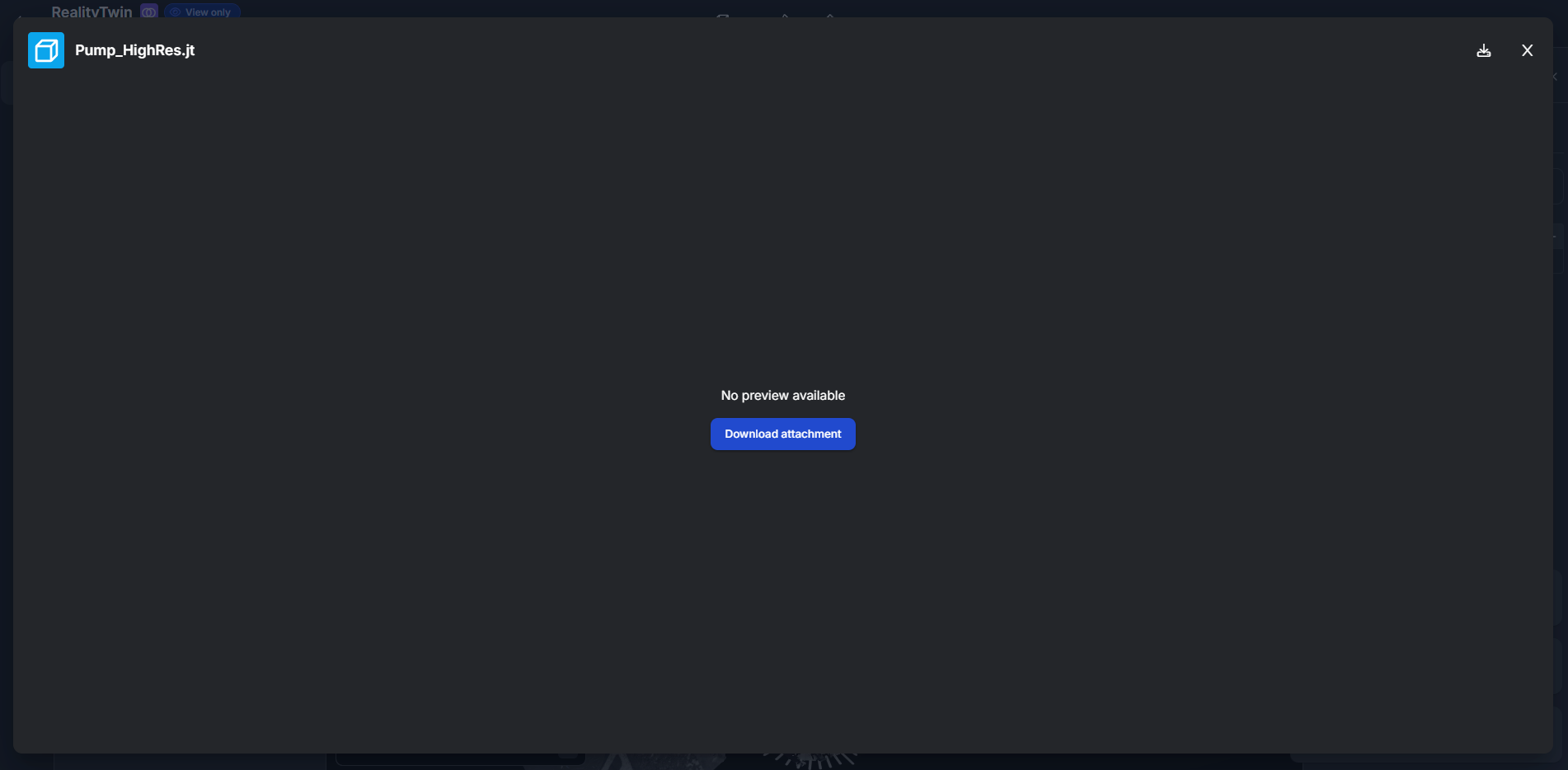
Attachment — upload files (images, videos, PDFs open in-Twin; others require download).
-
External link — clickable hyperlink.
-
Toggle (boolean) — true/false switch.
-
Dropdown — select from predefined choices. (Available only through Asset Type configuration, not ad-hoc).
-
Integration field — automatically populated from an external system. (Configured via Integration Links, not available ad-hoc.)
Editing Metadata
Section titled “Editing Metadata”To edit metadata:
-
Select an entity from the 3D scene or from the left panel.
-
The metadata panel appears on the right.
-
Update property values, add sections, or remove ad-hoc properties.
-
Changes are applied immediately and visible to all users.
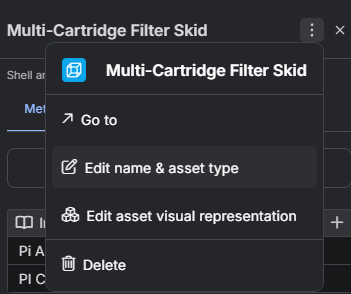
You can also change the Asset Type of a RealityAsset by opening the overflow menu (top-right of the panel).
Collaborative Editing
Section titled “Collaborative Editing”Metadata editing is collaborative and updates in real time.
-
All users instantly see updates.
-
If two users edit the same property simultaneously, the last write wins.
Integration-Linked Properties
Section titled “Integration-Linked Properties”Some properties are connected to external data sources through Integration Links (see Integration Links).
-
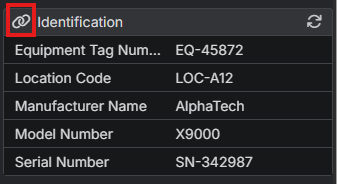
These fields show a link icon.
-
Values are populated automatically and cannot be edited manually.
-
Data refreshes each time the metadata panel is opened or by pressing the refresh button.
-
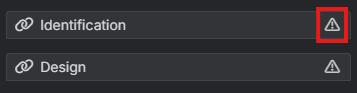
If the integration server is unavailable, a small exclamation mark appears next to the property.
Attachments
Section titled “Attachments”For properties of type Attachment:
-
Use the Upload button to select files.
-
A progress bar indicates upload status.
-
If the upload fails, the progress bar turns red.
-
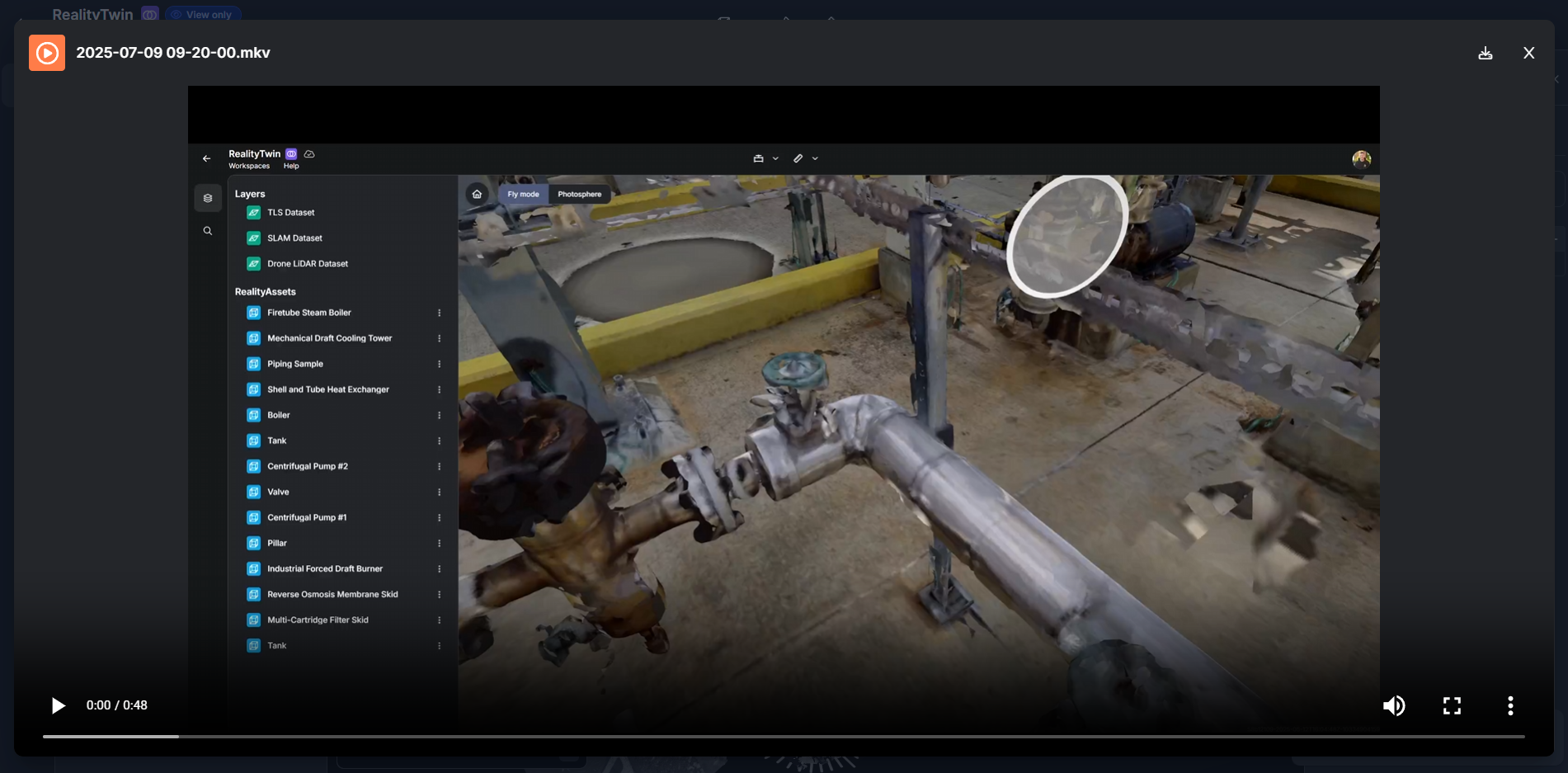
Supported preview types (images, video, PDFs) open directly inside the Twin. Example with a video:
-
Other file types must be downloaded to view.