Configure and Test the Generic HTTP Integration for SAP HTTP APIs
Prerequisites
Section titled “Prerequisites”-
Integration Server deployed and registered on the platform that can connect to the SAP HTTP API
-
SAP data available via standard HTTP calls
-
Asset Settings access on RealityPlatform
-
OpenAPI Document that describe the HTTP API (v2.0, v3.0 or v3.1)
-
The document can be YAML or JSON
-
The document can be stored locally inside the Assets folder of the Integration Server, or it can be an S3 URI
-
Configuration steps
This guide will describe how to configure the generic HTTP integration to retrieve data in a RealityAsset.
The main steps in order to configure the HTTP integration are the following :
-
Register the HTTP data source on RealityPlatform
-
Link the integration to an Asset Type
-
Send a test query in order to validate the connection to the API
Special Considerations for Systems Without Direct Connectors
While this guide uses SAP as a reference example, the same approach applies to any system that does not have a direct connector but can expose its data over HTTP.
In such cases, it is common practice to use an HTTP wrapper (or API gateway) that exposes the system’s data through standard HTTP calls. Many enterprise platforms — including SAP products — offer built-in or add-on capabilities for this, but any equivalent solution can be used.
Integration requirements:
-
Token-based authentication must be supported.
-
GET requests are preferred for retrieving data, though other HTTP verbs and authentication methods will be supported in the future.
-
An OpenAPI document (version 2.0, 3.0 or 3.1) that describe the API is required
Register the HTTP data source on the Integration Server
Section titled “Register the HTTP data source on the Integration Server”-
Add the new data source
-
Select the
HTTPtype -
Fill up the required parameters to establish the connection
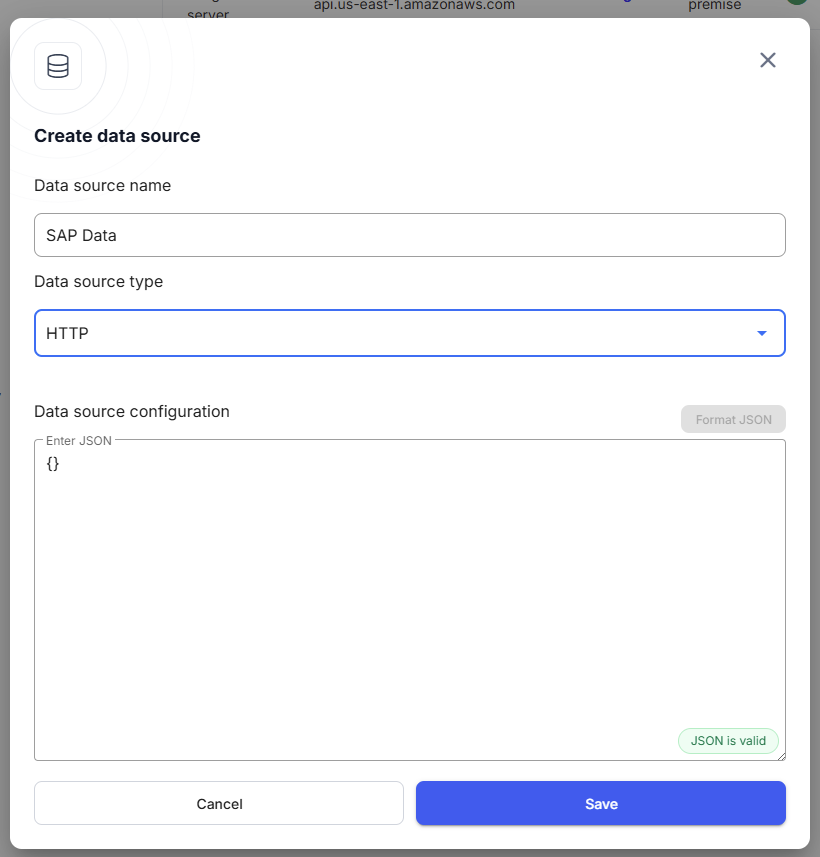
HTTP data source parameters
Section titled “HTTP data source parameters”{ "type": "HTTP", "name": "Example HTTP Data Source", "baseUrl": "https://example.com", "allowInsecure": false, "authBearerToken": "exampleBearerToken", "authBasic": "exampleBasicAuth", "schemaFile": "path/to/openapi/specification", "customAuthenticationHeader": { "Custom-Header": "HeaderValue" }}baseUrl
Section titled “baseUrl”The base URL of the HTTP data source.
allowInsecure
Section titled “allowInsecure”Allow integration server to query web servers with invalid or self signed certificates.
schemaFile
Section titled “schemaFile”The schema file that describe the HTTP API.
authBearerToken (Optional)
Section titled “authBearerToken (Optional)”The bearer token for authentication, if applicable.
authBasic (Optional)
Section titled “authBasic (Optional)”The basic authentication information, if applicable.
customAuthenticationHeader (Optional)
Section titled “customAuthenticationHeader (Optional)”A custom authentication header as a record of key-value pairs, if applicable.
Linking Asset Type Properties with HTTP
Section titled “Linking Asset Type Properties with HTTP”Before linking, make sure you have:
-
An existing Asset Type with a property to hold the required HTTP parameter values (e.g.,
Asset ID). It must be a “Short text” property type. -
An Integration Server configured with an HTTP data source and queries.
To link an Asset Type property to HTTP:
-
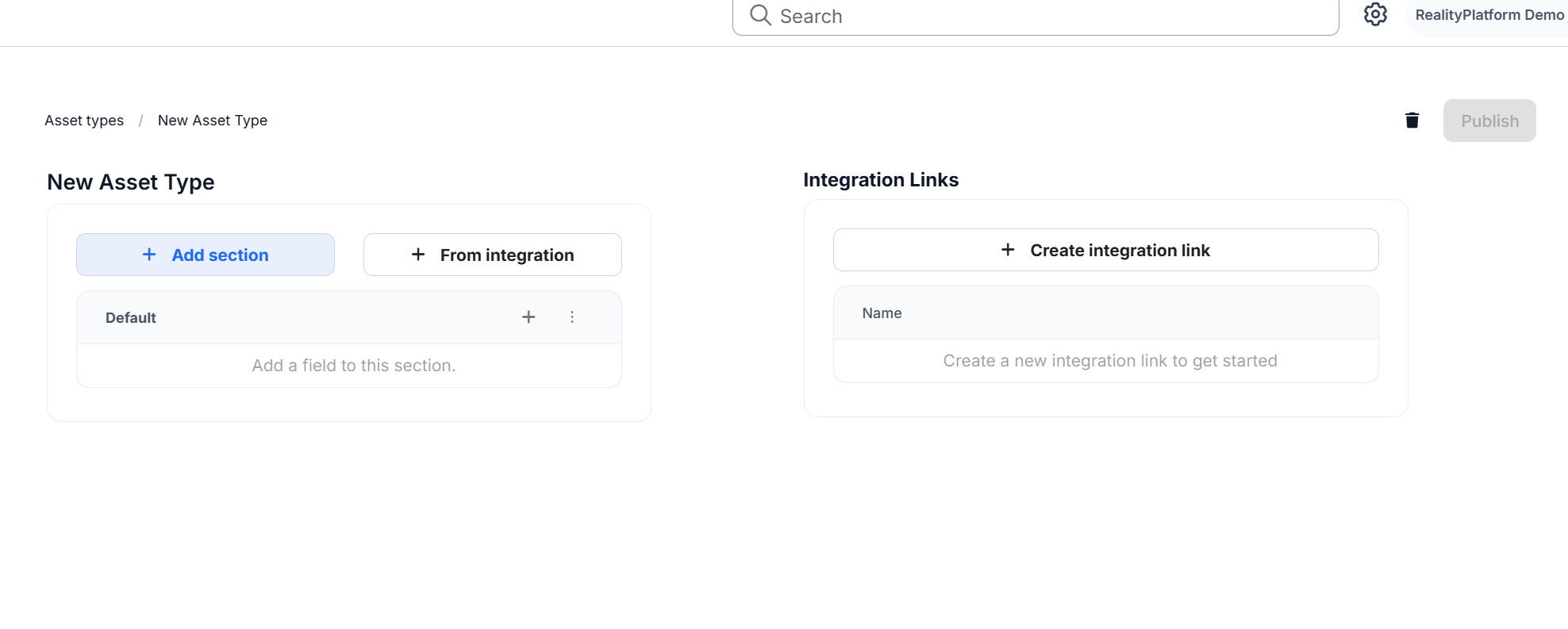
In Asset Settings → Asset Types, open the Asset Type you want to link.
-
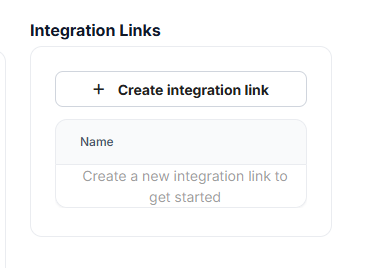
In the Integration Links panel (right side), click Create Integration Link.
-
Enter a link name and select the Integration Server configured for AWS IOT SiteWise.
-
Choose the appropriate data source
-
Choose the desired query
-
For each required parameter (e.g.,
id), select the Asset Type property that should provide its value (e.g.,Id).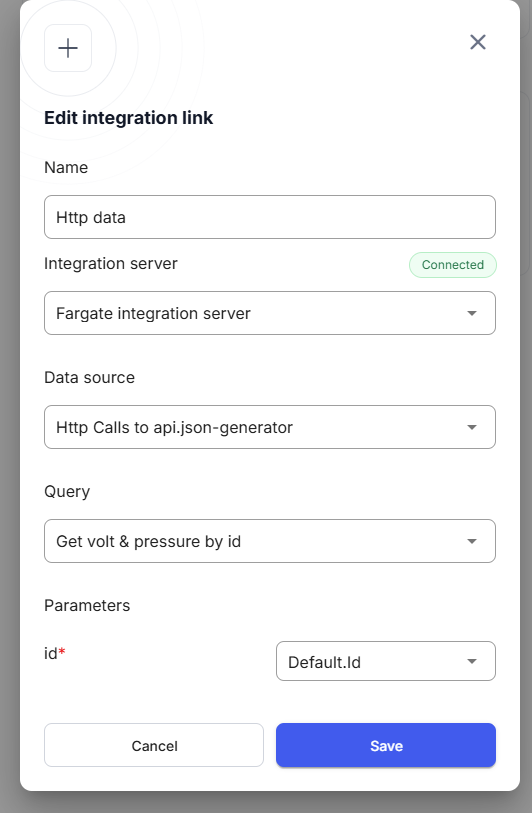
-
Click Save to create the link.
When this Asset Type is assigned to assets, the linked property values will automatically be passed through HTTP when running the integration.
Send a test query to validate connectivity between RealityPlatform and HTTP data source
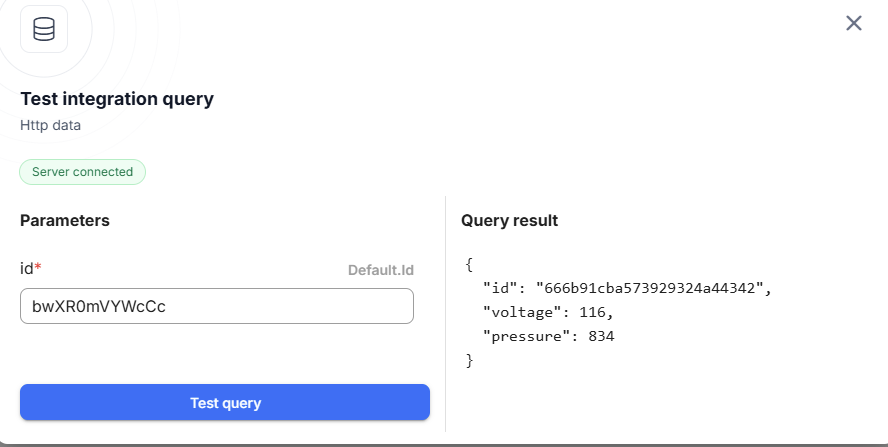
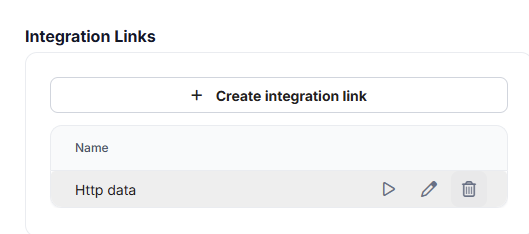
Section titled “Send a test query to validate connectivity between RealityPlatform and HTTP data source”- On the Asset Type Settings page, click on the play button next to the integration link that is targeting the HTTP data source. This will open the test query menu.
- Enter a valid parameter under the Parameters configuration and click on Test query to see the result. If no parameters are needed for the HTTP, the request will be executed automatically and the result will be displayed.