
Asset Types
Asset Types in RealityTwin are predefined templates used to define the set of properties that an asset will carry when created. By assigning an Asset Type to an asset, all the associated predefined properties are automatically linked, ensuring consistency and enabling powerful search and filtering capabilities. For example, if “Pump” is defined as an Asset Type, you could later search for all pumps in your project simply by filtering by that type.
Configuring Asset Types & Categories
Section titled “Configuring Asset Types & Categories”To configure Asset Types:
-
Go to Organization settings → Asset settings
-
Create a new Asset Type/Category or edit an existing one.
-
After making changes, click Publish to apply them.
Categories
Section titled “Categories”Asset Types can be grouped under Categories for better organization.
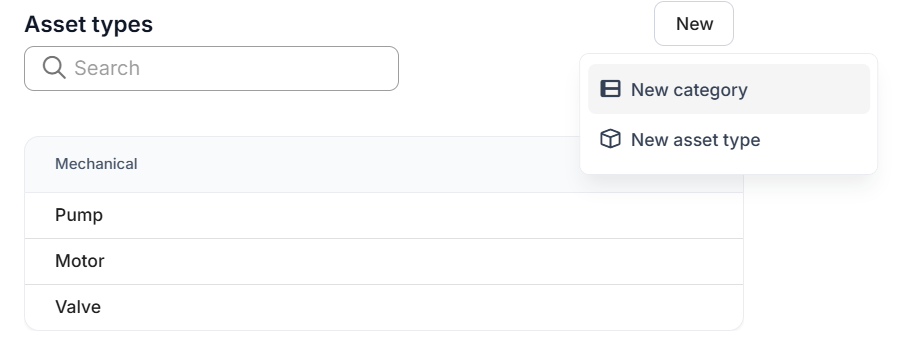
Categories are purely structural — they do not carry properties themselves but help organize related Asset Types.
Example:
-
Mechanical (Category)
-
Pump (Asset Type)
-
Motor (Asset Type)
-
Valve (Asset Type)
-
You may create new Category by pressing the “New” button at the top right of the Asset Type page.
Organizing Properties into Sections
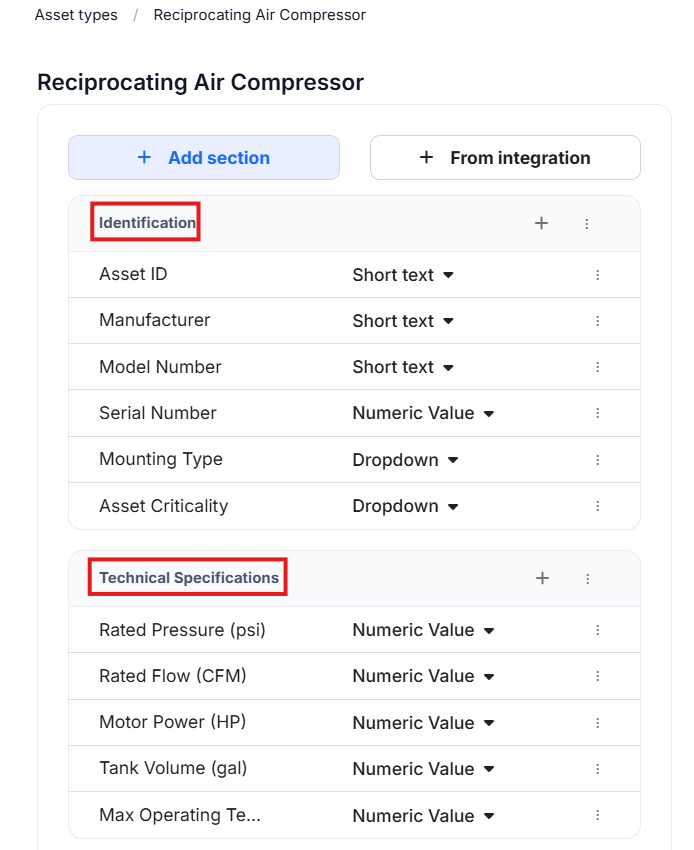
Section titled “Organizing Properties into Sections”Within an Asset Type, properties can be grouped into Sections to improve clarity and data entry.
Each section can contain one or more related properties.
Example:
-
Identification:
-
Technical Specifications
-
Monitoring & Instrumentation
-
Maintenance & Lifecycle
Property Definition
Section titled “Property Definition”Each property defined in an Asset Type includes:
-
Key — The name/identifier of the property.
-
Value Type — The format of the data the property will hold, such as:
-
Number (see more details below)
-
Short text
-
Attachment
-
URL link
-
Toggle (boolean)
-
Dropdown (predefined choices see more details below)
-
Integration field (linked to an external system)
-
Configuring Units for Number Fields
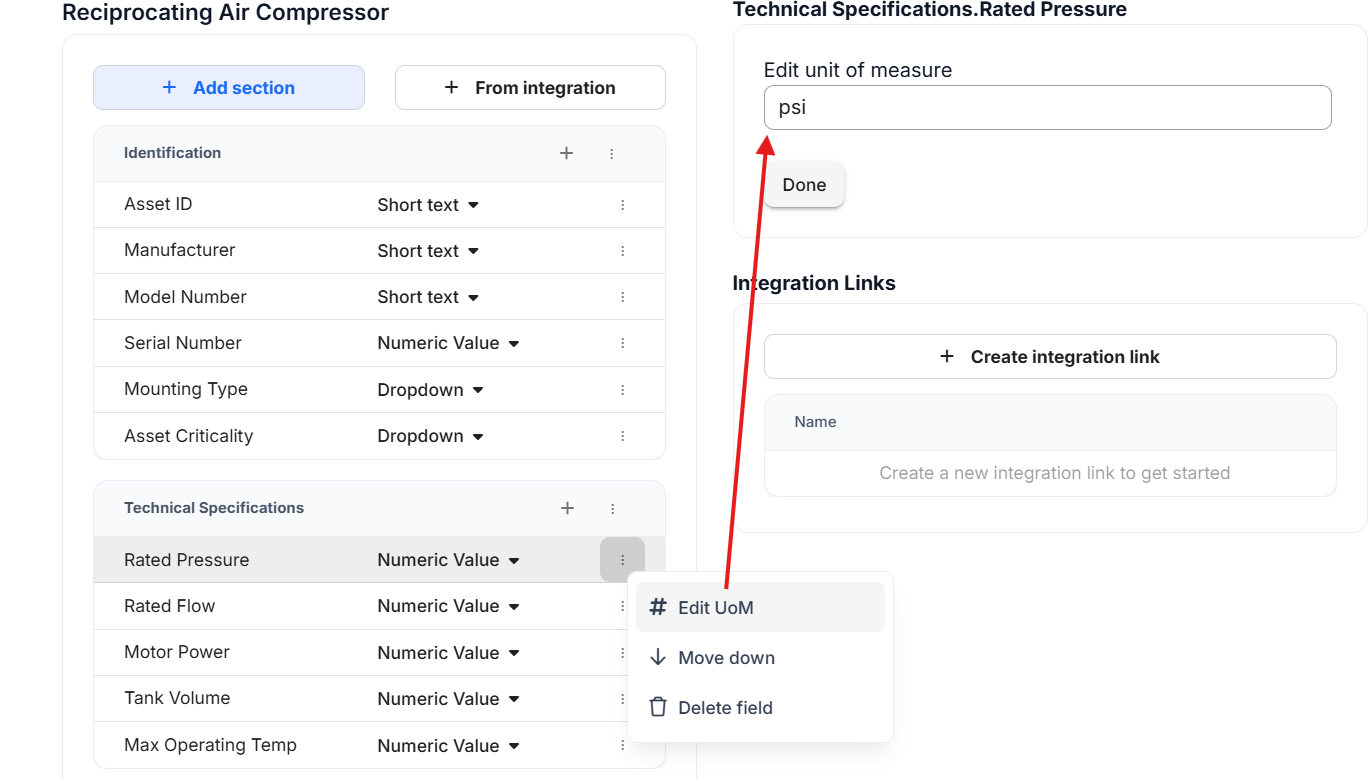
Section titled “Configuring Units for Number Fields”When creating a new property with the Value Type set to Number, you can optionally define Units.
-
The units field is a free text field where you can enter any label (e.g.,
mm,°C,kg). -
The unit definition is part of the Asset Type configuration and applies to all assets using that type.
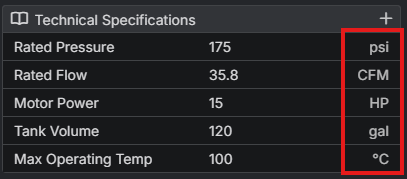
- Units act as a suffix when the value is displayed in the asset’s metadata panel.
Configuring Dropdown Options
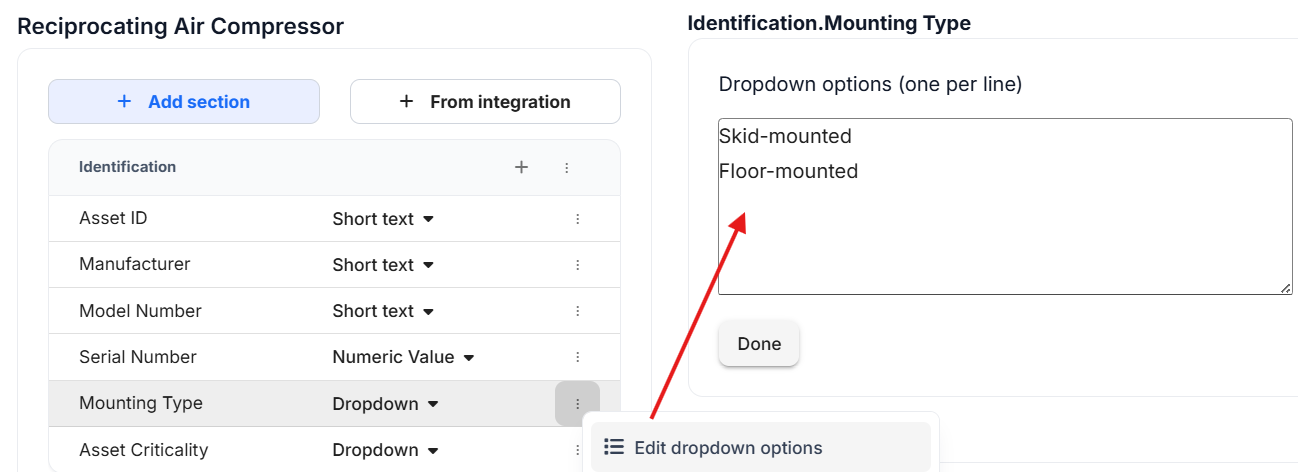
Section titled “Configuring Dropdown Options”When creating a new property with the Value Type set to Dropdown, a panel will appear on the right side of the screen, allowing you to define the dropdown options.
-
Enter each option on a separate line (press Enter after each entry).
-
You can return to edit these options at any time by clicking the overflow menu next to the property and selecting Edit dropdown options.
Connecting properties with an External integration
Section titled “Connecting properties with an External integration”As for regular Asset Type configuration, it is possible to create sections of data, or individual fields, that are mapped to integration queries. The general idea is that whenever an Asset of a specific type is loaded, a set of integration queries will be generated if any links exist. When the integration queries are executed, the result will be organized into sections or fields within the asset type.
Before mapping properties in Asset Types, the integration must already be fully configured. This includes setting up the integration server and establishing a connection with the external system.
For step-by-step instructions, see our Integration Setup Documentation.
About integration sections & fields
Section titled “About integration sections & fields”Asset Types support integrations to automatically link and populate properties from external systems (e.g., ERP, CMMS). There are two main ways to configure integrations: Section from integration & Integration field.
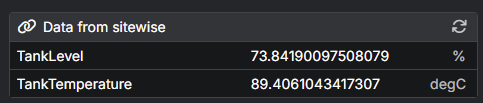
It is possible to map an entire section of an integration query to a section of an asset type. For example, a query that returns this object :
{ "TankLevel": { "value": 73.84190097508079, "uom": "%", "_p3d_type": "urn:primitive:obj:numeric" }, "TankTemperature": { "value": 89.4061043417307, "uom": "degC", "_p3d_type": "urn:primitive:obj:numeric" }}Can be automatically mapped to a section of an Asset Type to look like this :
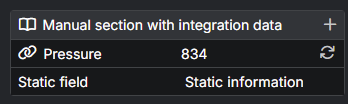
If needed, a single value can also be extracted from a query and mapped to a single field. For example, a query that might return a pressure of 834 can be represented like this, and mixed with regular asset type fields :
Configuration Sections From Integration
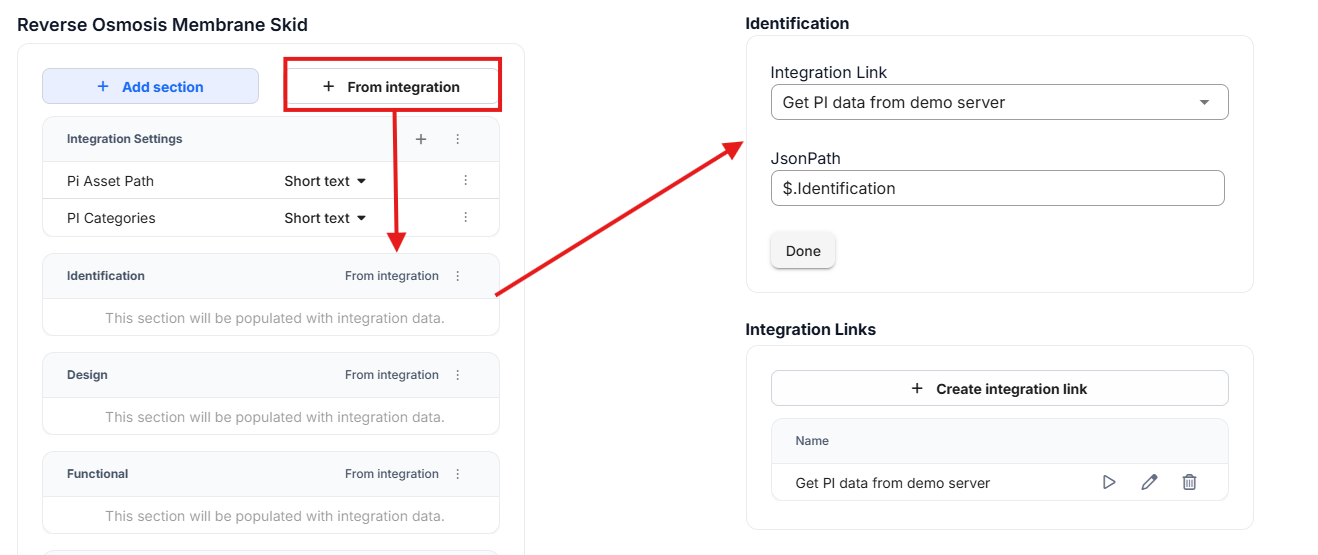
Section titled “Configuration Sections From Integration”You can create an entire section that is sourced directly from an integration:
-
Select From Integration when adding a new section.
-
Choose the desired Integration Link.
-
Enter the JSONPath to define which part of the integration payload should be bound to this section (see JSONPath Mapping for details).
-
The section will automatically populate with all properties retrieved from the linked integration.
-
Any updates from the integration will reflect in the asset’s data based on the sync configuration.
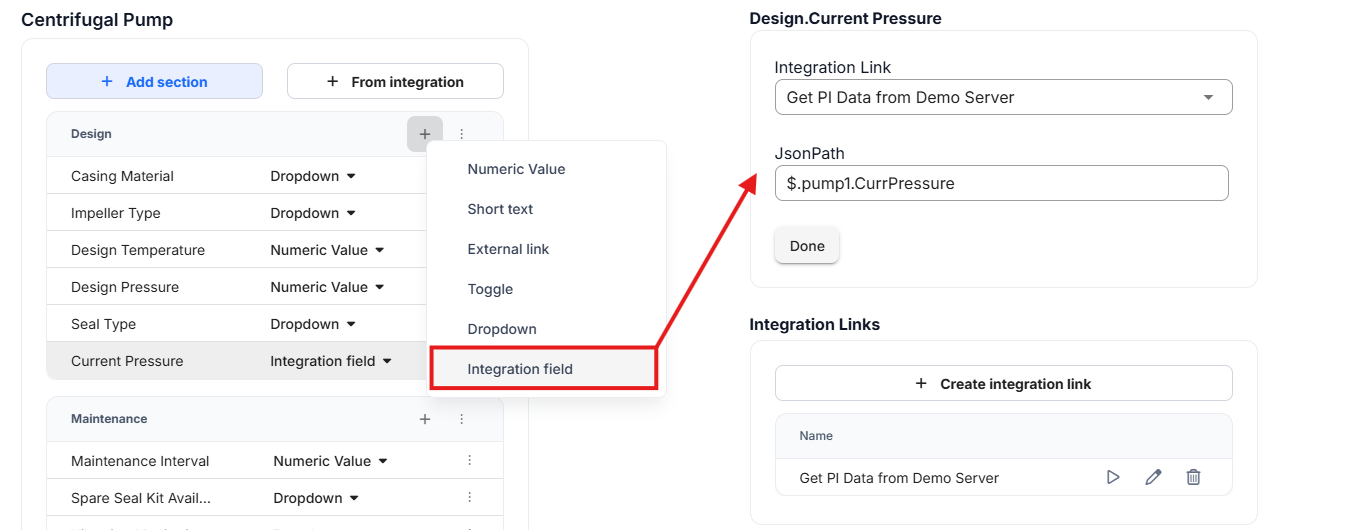
Configuration Integration Fields
Section titled “Configuration Integration Fields”Instead of importing an entire section, you can map individual properties to an integration:
-
Add a new property and set the Value Type to Integration field.
-
Choose the desired Integration Link.
-
Enter the JSONPath to define which part of the integration payload should be bound to this section (see JSONPath Mapping for details).
-
Only that property will be synced with the external system.
JSONPath Mapping
Section titled “JSONPath Mapping”Both From Integration sections and Integration fields require a JSONPath to select data from the JSON payload returned by the Integration Link.
-
From Integration (section-level JSONPath):
Enter a JSONPath that resolves to the object you want to bind to the entire section.
Example:$.Identificationbinds the wholeIdentificationobject from the payload to your Asset Type section. -
Integration fields (property-level JSONPath):
Enter a JSONPath that resolves to a single scalar value (string/number/boolean/date).
Example:$.Identification.serialNumber
Publishing Changes
Section titled “Publishing Changes”Publishing changes will immediately impact all existing RealityAssets using that Asset Type.
For example:
-
Renaming a property will update it for all linked assets.
-
Deleting a property will remove its value from all linked assets.
Access Control
Section titled “Access Control”By default, only Super Admins can manage Asset Types.
Through role customization, these administrative privileges can be granted to additional members if needed.
Benefits of Using Asset Types
Section titled “Benefits of Using Asset Types”-
Consistency — All assets of the same type share the same property structure.
-
Searchability — Enables queries like “Show me all the pumps.”
-
Organization — Categories and sections keep information clear and accessible.
-
Scalability — Easily update property definitions for all future assets of a type.