Present & Capture
The application offers various tools to make presentation of your environment easy.
You may access the presentation tools through the toolbar
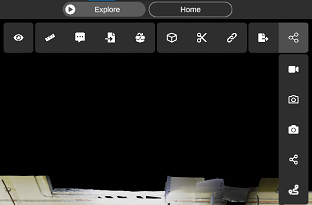
Screenshots and screen recording
Section titled “Screenshots and screen recording”You can record the screen or take a screenshot using the screen recording tools or the screenshot tool. Once your screen recording or screenshot is done, you will be prompted to save the file at the location of your choice.
The screenshot tool allows you to take a transparent screenshot. The user interface won’t be visible in the screenshot. This way you get a clean capture of your environment to share with collaborators.
Note that taking a transparent screenshot while in orthographic mode will show a reference scale in the bottom right of the screenshot.
Video path recording
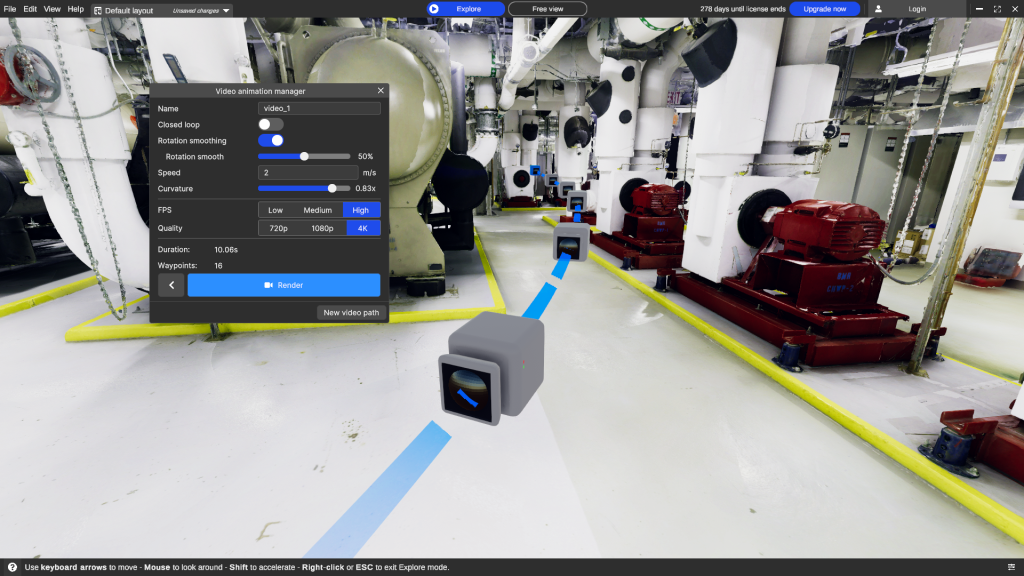
Section titled “Video path recording”You can create a video, by pre-defining a path made of waypoints. Each waypoint represents a point of view you want the camera to pass through. The path recording tool may be accessed from the presentation menu in the toolbar.
To add a waypoint, go to the desired point of view and press space. This will create a waypoint at that position, and a line will be drawn between the previous waypoint and the new one to indicate the path that the camera will follow.
Once your path is completed, you can generate a video that travels smoothly along it.
If you want to edit the path, you can click on a waypoint and modify its position and rotation, or add new waypoints.
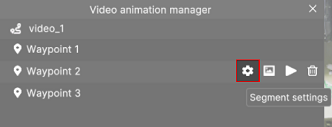
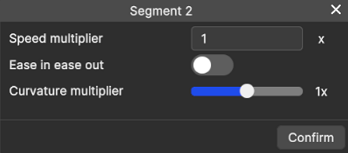
To further customize your video path you can also specify some options for individual segments of the path, to do this you need to click on the settings icon of the starting waypoint of the segment you want to customize, once there you will be able to set custom values for that segment.