
Groups
The group management page allows administrators to easily create, organize, and control user groups, streamlining permissions and collaboration across teams.
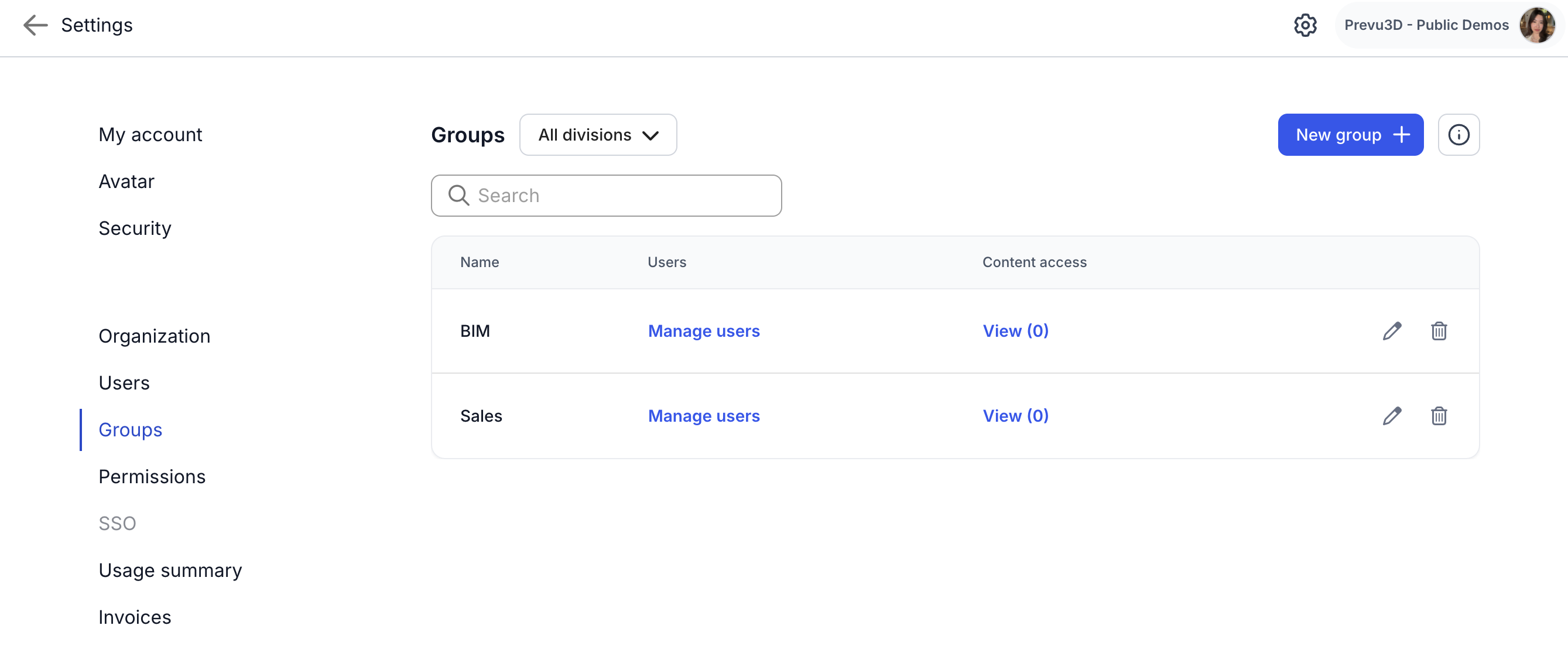
Accessing the Group Management Page
Section titled “Accessing the Group Management Page”-
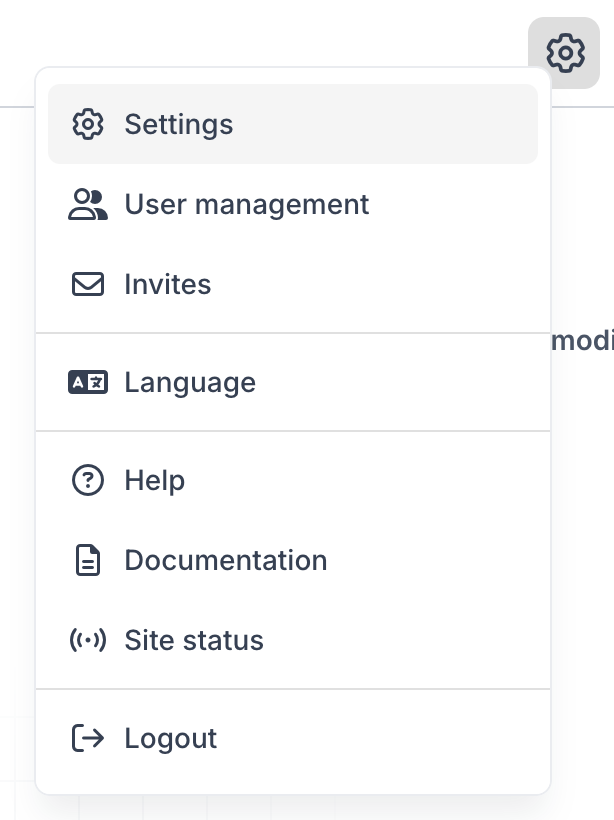
Navigate to settings
-
Select groups
Key Features
Section titled “Key Features”-
Create and Manage Groups: Set up groups, define their roles, and manage user membership
-
Assign Group Permissions: Set high-level permissions that determine the group’s division(s)
-
View Group Content Access: Get an overview of what content each group can access. (You cannot manage access here. See sharing to edit and provision access)
Page Overview
Section titled “Page Overview”Group List
Section titled “Group List”The Group List provides a quick overview of all existing groups, displaying essential information for each, such as:
-
Group Name
-
Users: Individual users who belong to this group
-
Content access: Overview of what the group has access to (including their role on the content)
-
Actions: Options to edit or delete the group
The search function makes it easy to locate specific groups by name.
Creating a New Group
Section titled “Creating a New Group”To set up a new group:
-
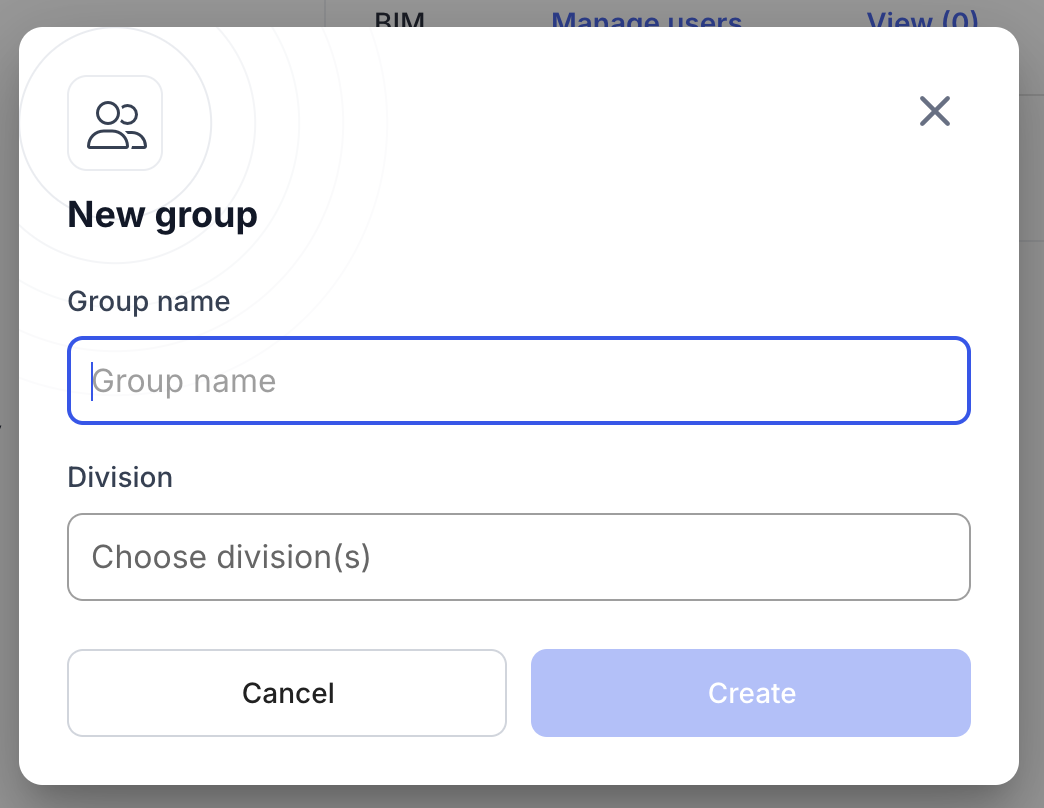
Click “New Group +” at the top right of the page.
-
In the “Create Group” dialog, provide the following details:
-
Group Name: A descriptive name for the group.
-
Division: Select division(s)
- It will authorize the group to be added on content only inside of the selected divisions.
-
-
Click “Create” to save the group.
Manage user group
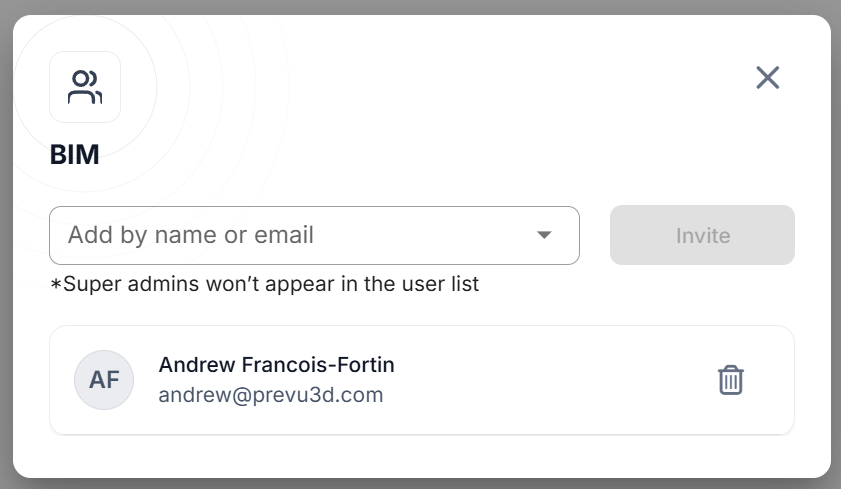
Section titled “Manage user group”Once the group is created you will be able to add existing users or invite new user to the group. They will be automatically provided with all the access and permissions related to the group. This can save you a lot of time if you are managing a lot of users with multiple level of access.
Viewing Group Content Access
Section titled “Viewing Group Content Access”Each group’s content access can be viewed to understand which content the group can access with their role permission.
- Select the “Content Access” button to see an overview of what pieces of content are accessible by this group.
Deleting a Group
Section titled “Deleting a Group”To delete a group:
-
Locate the group in the Group List.
-
Click the “Delete” icon (a trash can)
-
Confirm the deletion. This action is permanent and removes the group configuration.
Single Sign-On Group Mapping
Section titled “Single Sign-On Group Mapping”For more advanced management, it is possible to leverage the SSO group mapping feature. Refer the Single Sign-On article