
Managing Layers
Layers in the Composer workspace allow you to build and refine your Twin by stacking multiple data bundles together, much like a volumetric Photoshop. You can add new layers, reorder them, adjust their appearance, and control their visibility while composing your space.
Layer Types
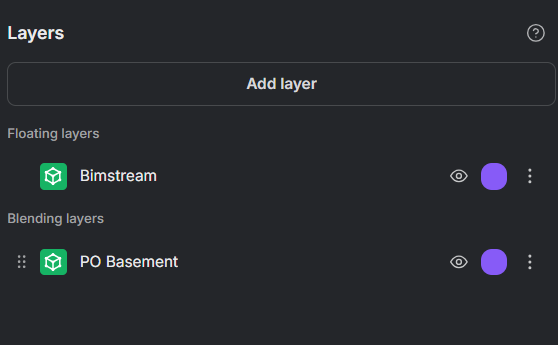
Section titled “Layer Types”The Composer organizes layers into two categories, visible in the left-side panel:
Blending Layers
Section titled “Blending Layers”Blending layers are the default type for reality capture data (e.g., TLS, SLAM, drone scans). They participate in the environment composition:
- They follow layer order priority — upper layers can mask or override lower ones.
- They support the Clip Layer and Clean Layer tools for fine-grained visibility control.
- They can be reordered by dragging and dropping in the left-side panel.
Floating Layers
Section titled “Floating Layers”Floating layers render independently from the environment and are not affected by other layers. They are designed for reference and contextual data:
- They do not participate in clipping or cleaning — the Clip Layer and Clean Layer tools do not apply.
- They do not override underlying layers and always render on top.
- CAD layers are automatically classified as Floating Layers when added to the Composer.
Floating layers appear in a dedicated Floating Layers section at the top of the left-side panel. Since they render independently, their order relative to blending layers does not matter.
Adding a New Layer
Section titled “Adding a New Layer”-
Use the Add new layer button in the top-left corner of the Composer workspace.
-
A new browser tab will open, allowing you to select a data bundle to add to your Twin.
-
The selected data bundle must belong to the same Site as your Twin.
-
If no data bundles are available, see the Uploading section to get started.
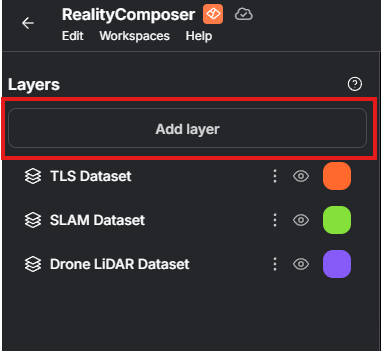
By default, the new layer positions itself according to the global coordinates of the data.
If the new layer is misaligned with existing layers, Composer will prompt you to recenter the layer based on the others.
Ordering Layers
Section titled “Ordering Layers”Blending layers can be reordered from the left-side panel by dragging and dropping them into position.
The order of blending layers defines how they interact with each other. Think of it like Photoshop: upper layers can clip or take priority over lower ones. Floating layers are not affected by ordering and always render independently.
See the Clip Layer and Clean Layer tools for detailed examples of how order impacts your composition.
Adjusting Layers
Section titled “Adjusting Layers”Each layer offers several management options in the left-side panel:
-
Visibility toggle — Show or hide a layer for your own view. This only affects your current session.
- If you publish your Twin, hidden layers will still appear in the published composition.
-
Change color — Assign a distinct color to a layer to make alignment and masking easier.
-
3D overview (bottom-right corner) — A miniature view of your Twin showing how all layers fit together.
Removing Layers
Section titled “Removing Layers”To remove a layer, open its overflow menu in the left-side panel and select Delete.
Saving and Publishing
Section titled “Saving and Publishing”All changes made in Composer are temporary until you explicitly publish them.
-
Use Publish when you are ready to save your composition.
-
Publishing makes your changes visible to all Twin users.
-
Be cautious: publishing overwrites the existing composition.