Configure and Test the Aveva Connect Integration
Prerequisites
Section titled “Prerequisites”-
Integration Server deployed and registered on the platform
-
Access to Aveva Connect Data Services
Supported query types
Section titled “Supported query types”- Get the last value from one or many SDS Stream
Supported features
Section titled “Supported features”- Automatic UoM support
Configuration steps
Section titled “Configuration steps”This guide will describe how to configure the Aveva Connect integration to retrieve data in a RealityAsset.
The main steps in order to configure the Aveva Connect integration are the following :
-
Obtain a client authentication token from Aveva Connect
-
Register the Aveva Connect data source on RealityPlatform
-
Link the integration to an Asset Type
-
Send a test query in order to validate the connection to Connect
Obtain a client authentication token from Aveva Connect
Section titled “Obtain a client authentication token from Aveva Connect”-
Log into Aveva Connect and navigate to Aveva Data Services
-
Navigate to Security → Clients and click on the Add Client button on the top right
-
Select the appropriate permissions and generate a client token. The integration will need at least read access to the streams that will be accessed.
Register the Aveva Connect data source on the Integration Server
Section titled “Register the Aveva Connect data source on the Integration Server”-
Add the new data source
-
Select the
AVEVA_CONNECTtype -
Fill up the required parameters to establish the connection
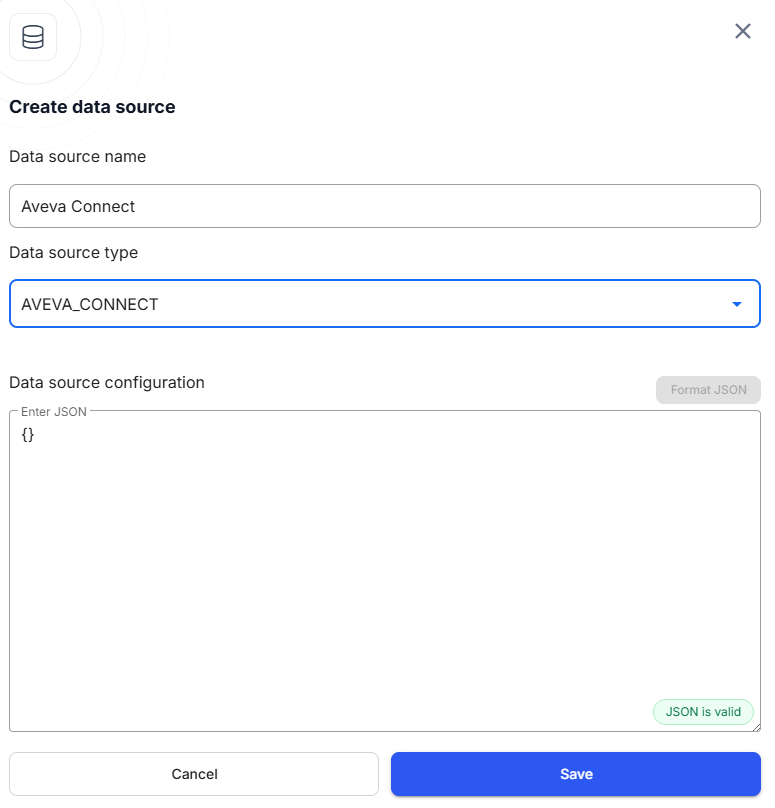
Aveva Connect data source parameters
Section titled “Aveva Connect data source parameters”{ "baseUrl": "https://example.avevaconnect.com", "namespaceId": "exampleNamespaceId", "tenantId": "exampleTenantId", "communityId": "exampleCommunityId", "clientId": "exampleClientId", "clientSecret": "exampleClientSecret"}baseUrl
Section titled “baseUrl”The base URL of the Aveva Connect service.
nameSpaceId
Section titled “nameSpaceId”The namespace ID of the Aveva Connect service.
tenantId
Section titled “tenantId”The tenantId of the Aveva Connect service.
CommunityId (Optional)
Section titled “CommunityId (Optional)”The id of the community that is hosting the data, if applicable.
clientId
Section titled “clientId”The Id of the client that is assigned to the integration service installation.
clientSecret
Section titled “clientSecret”The client secret that is assigned to the integration service installation.
Linking Asset Type Properties to Aveva Connect
Section titled “Linking Asset Type Properties to Aveva Connect”Before linking, make sure you have:
-
An existing Asset Type with a property to hold the required Aveva Connect parameter values (e.g.,
Stream Ids). It must be a “Short text” property type. -
An Integration Server configured with an Aveva Connect data source and queries.
To link an Asset Type property to Aveva Connect:
-
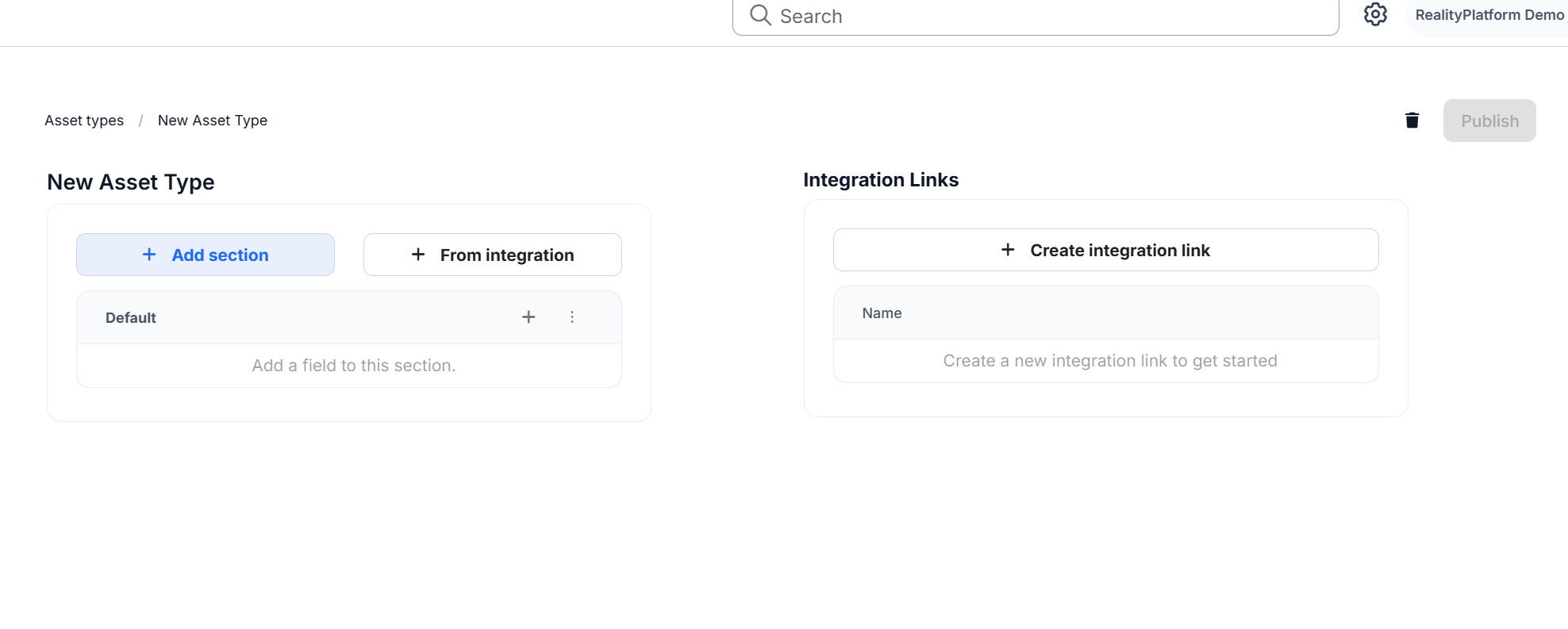
In Asset Settings → Asset Types, open the Asset Type you want to link.
-
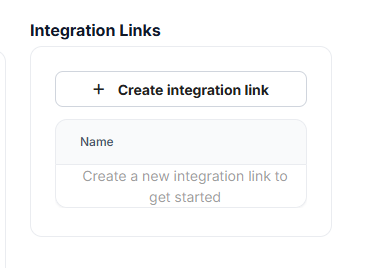
In the Integration Links panel (right side), click Create Integration Link.
-
Enter a link name and select the Integration Server configured for Aveva Connect.
-
Choose the appropriate Aveva Connect data source and query.
-
For each required parameter (e.g.,
StreamId), select the Asset Type property that should provide its value (e.g.,Stream Ids).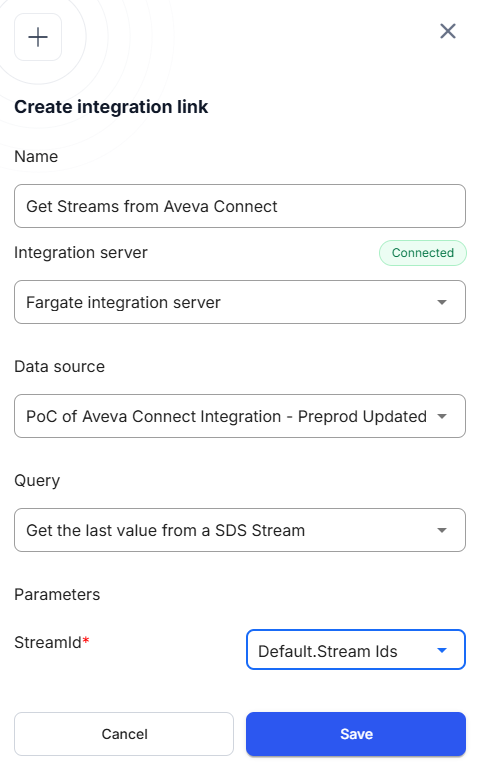
-
Click Save to create the link.
When this Asset Type is assigned to assets, the linked property values will automatically be passed to Aveva Connect when running the integration.
Send a test query to validate connectivity between RealityPlatform and Aveva Connect
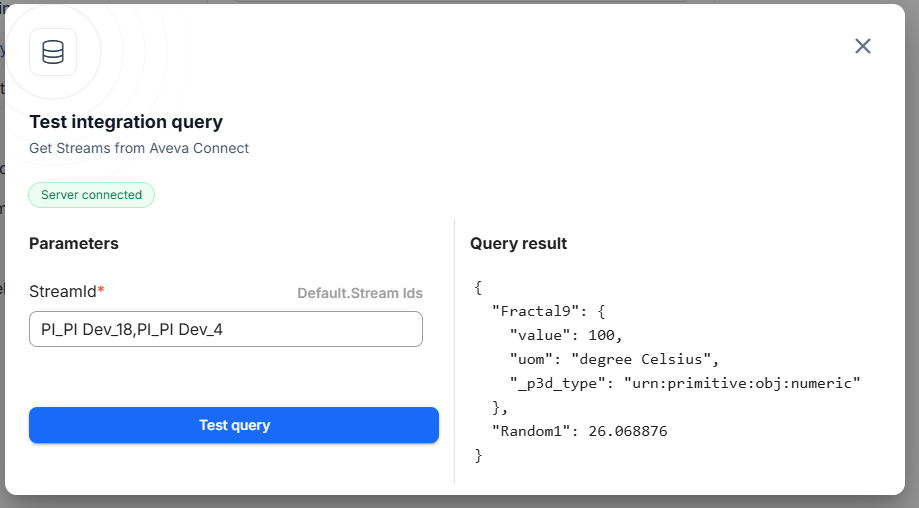
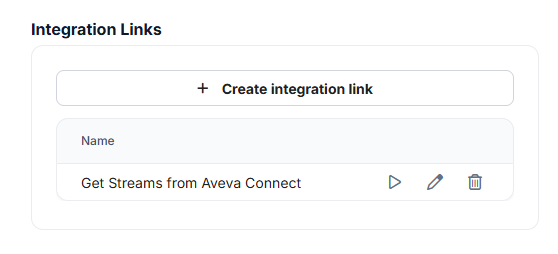
Section titled “Send a test query to validate connectivity between RealityPlatform and Aveva Connect”- On the Asset Type Settings page, click on the play button next to the integration link that is targeting the Aveva Connect data source. This will open the test query menu.
- Enter one or many stream IDs, separated by commas, under the Parameters configuration and click on Test query to see the result. The stream Ids can be obtained from Aveva Connect directly.