Navigation
The RealityPlan application allows you to edit and explore your space with multiple navigation modes.
Navigation Menu
Section titled “Navigation Menu”You will notice the navigation menu at the top left of the screen, this menu allows you to explore your space with multiple navigation modes such as free-view mode, third-person mode or orbit mode. Navigation mode are categorised by types, feel free to select the one that best suits your needs and preferences.
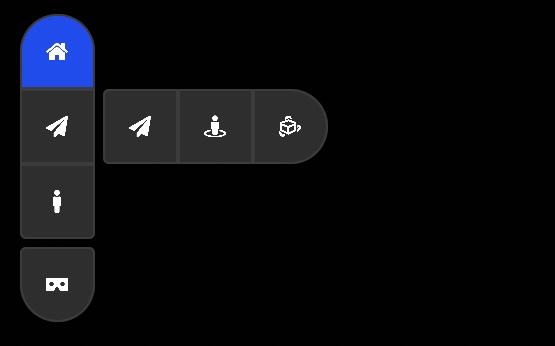
To navigate in your space, simply use mouse click to teleport or drag-and-drop the icon representing the navigation mode to the location you want to land to in the environment :
Editor Mode (default)
Section titled “Editor Mode (default)”This is the default state that allows you to use the tools and all the features of the application.
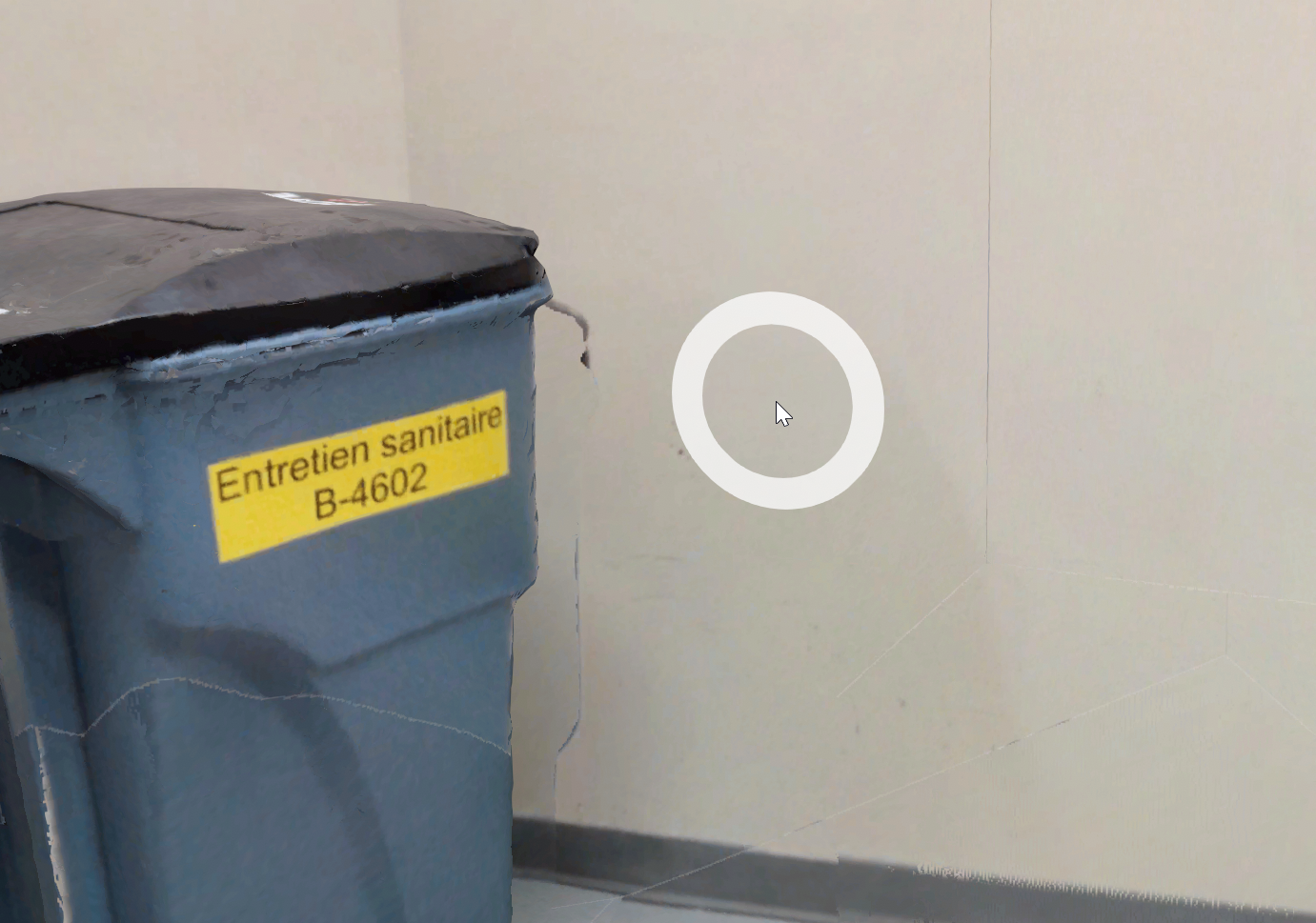
You may navigate in the environment using the navigation circle that appears under your mouse. To teleport somewhere, simply mouse click on the spot of the environment you want to teleport to. You may also rotate the view by holding and dragging the mouse cursor.
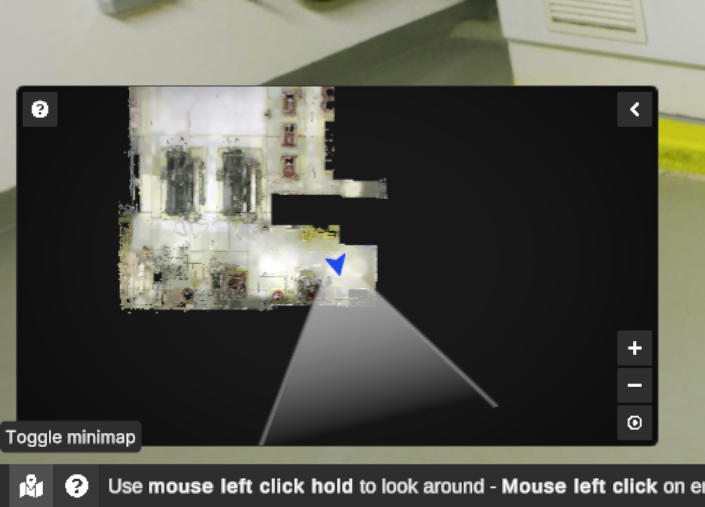
You can also use the minimap to teleport to a specific point in your space by double-clicking on the map.
Editor navigation modes are: Home, Free view, Orbit, Photosphere.
Using the Editor mode, you may use the following controls :
| Action (editor controls only) | Concerned editor navigation modes | KEY |
|---|---|---|
| Teleport (except when using a tool or selecting something) | All |  (mouse left-click) (mouse left-click) |
| Rotate the view | Freeview, Photosphere | Hold and move mouse (mouse left-click) |
| Rotate around pivot | Orbit |  Hold and move mouse (mouse right-click) Hold and move mouse (mouse right-click) |
| Move | All except Photosphere |  Hold and move mouse (mouse middle click) Hold and move mouse (mouse middle click) |
| Zoom in/out | All | (mouse scroll) |
| Drag environment | Home, Orbit | (mouse left-click) |
| Switch to explore mode | Free view | (mouse right-click) or Explore button |
Explore Mode
Section titled “Explore Mode”When active, Explore mode will hide the interface and mouse cursor, allowing you to have a much more immersive experience in the environment. In this mode, you may navigate using the keyboard and mouse as the navigation controls are enhanced and the tools are disabled.
Explore navigation modes are: Free view, First person, Third person.
Using the Explore mode, you may use the following controls :
| Action (explore controls only) | Concerned explore navigation modes | KEY |
|---|---|---|
| Switch to editor mode | All |  (mouse right-click) or (mouse right-click) or  |
| Move | All |  or or  |
| Change look direction | All | Move Mouse |
| Move faster | All |  |
| Crouch | Third Person, First person |  |
| Jump | Third person, First person |  |
| Move up | Free view |  |
| Move down | Free view |  |
Orbit navigation
Section titled “Orbit navigation”When using Orbit navigation wheel, manage your point of view using our Orbit navigation wheel at the bottom right of the interface.
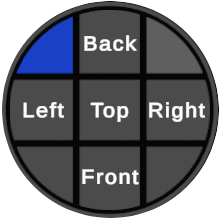
Photospheres
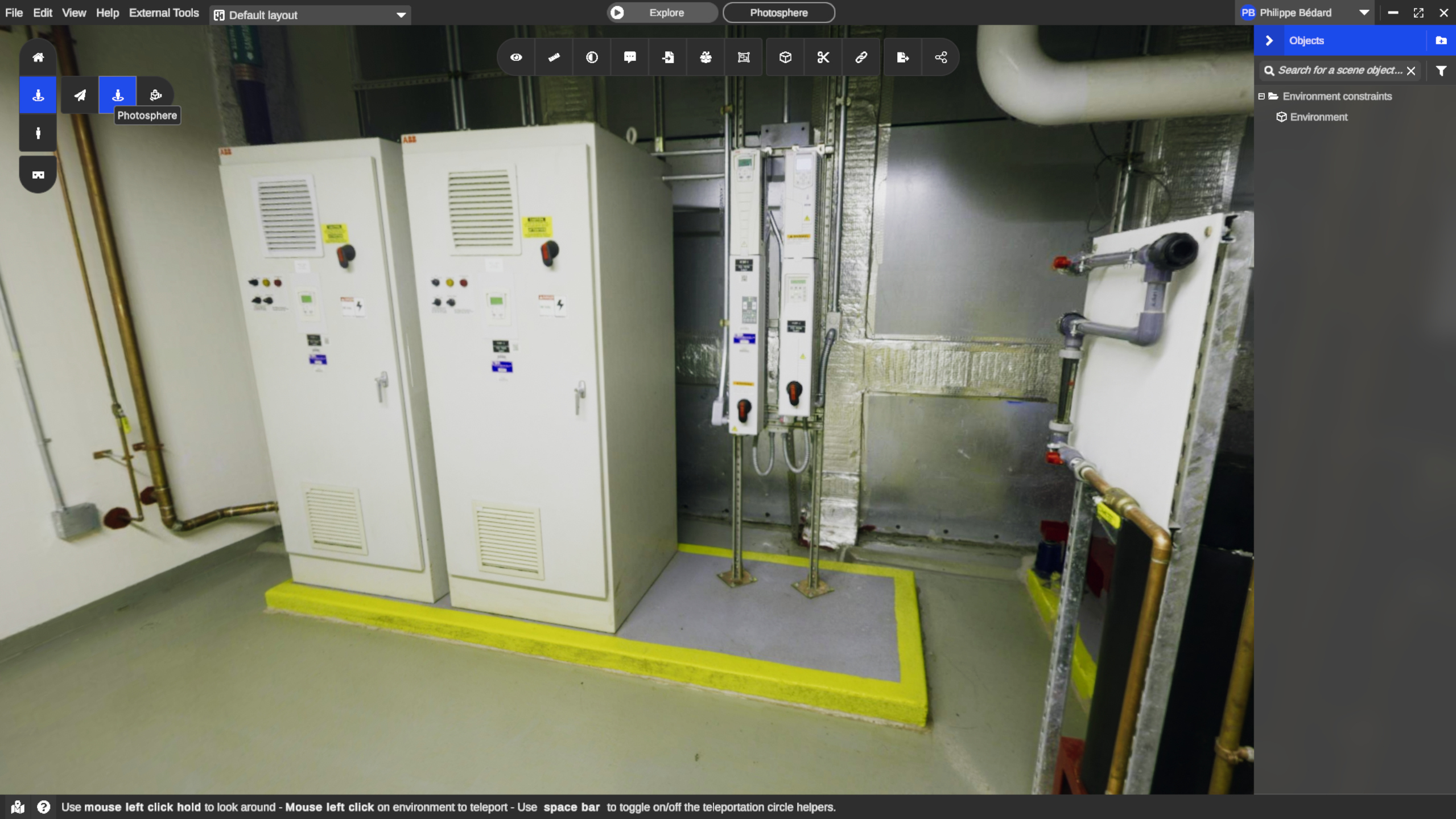
Section titled “Photospheres”The photosphere navigation mode is a good way to see the real images captured by the scanner. It also supports 3D objects, measures and annotations, blending them all into a surprisingly realistic environment. Your movements are limited to the stations position.
Desktop avatar
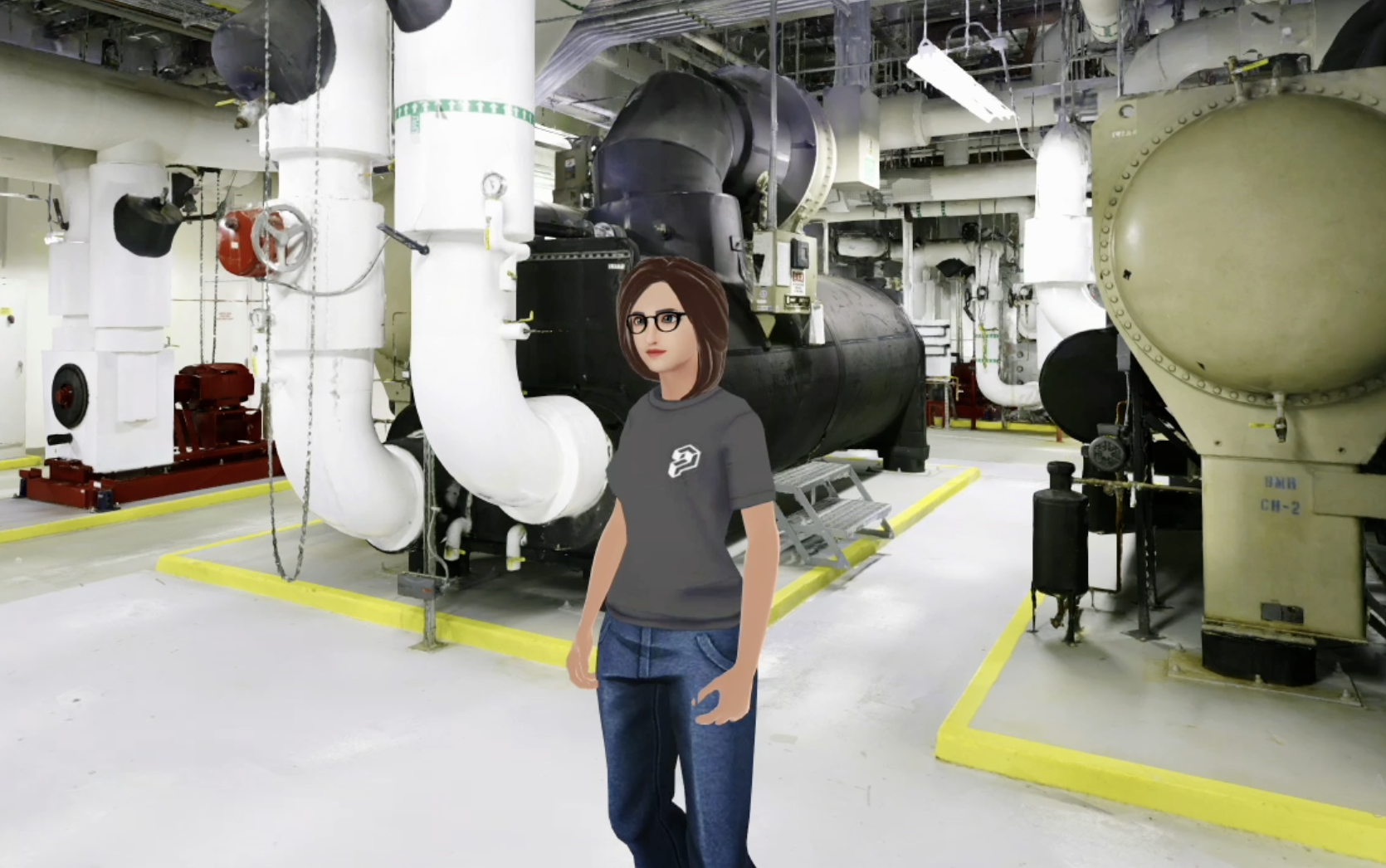
Section titled “Desktop avatar”On the desktop, you can see your full 3D avatar
To use your avatar:
-
Use the left vertical toolbar to toggle Third person mode, or
-
Go to the top menu bar and select View > Third Person