
Export 3D
The application supports the export of 3D models under multiple formats.
Exporting a 3D object
Section titled “Exporting a 3D object”To export an object
-
Click to select object
-
Use the menu File > Export selected objects. You will be prompted to select the exported object disk location and format.
You may also export the object using the selected object property panel, or the contextual menu associated to the object.
Supported formats
Section titled “Supported formats”| Extension | Type | Comment |
|---|---|---|
| OBJ | MESH | A MTL file and some PNG/JPEG textures are usually exported alongside the .OBJ file. |
| DXF | CAD SURFACIC | Colors from the texture are associated to each face (textures are not supported by DXF). Heavy DXF may hardly open in CAD softwares. |
| TXT | POINTCLOUD | Exported under the format X Y Z R G B NX NY NZ. User is prompted to setup density before export. |
| GLB (binary GLTF) | MESH | - |
| FBX | MESH | - |
| STL | MESH | - |
| PLY | MESH | Colors from the texture are associated to each vertex of the mesh (textures are not supported by PLY) |
| RCP | POINTCLOUD | User is prompted to setup density before export. |
| USDZ | MESH | - |
Exporting a group of objects as a single object
Section titled “Exporting a group of objects as a single object”If you wish to export multiple objects as a single object, you can use the Shift key to select the objects then save them export them using File > Export selected objects.
Export contents of a clipping box
Section titled “Export contents of a clipping box”You can easily export the contents of a clipping box as either a Point Cloud, 3D objects and more. First, create a Clip for the desired area you wish to export. Then, right-click on your box and select Export Content.
Export options
Section titled “Export options”After confirming an export, you will be prompted with the Export options panel.
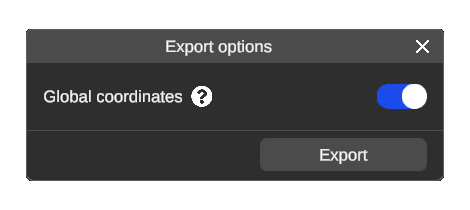
Global coordinates (coordinate consistency)
Section titled “Global coordinates (coordinate consistency)”When the Global coordinates option is enabled, the model will be exported at its position within the environment, otherwise its origin will be re-centered to the middle of the object.