
Single Sign-On (SSO)
SSO Setup and Usage
Overview
Section titled “Overview”The Prevu3D Cloud Platform supports secure Single Sign-On (SSO) via industry-standard protocols:
-
SAML 2.0 — for authentication and user sign-in.
-
SCIM 2.0 — for automatic user and group provisioning.
Supported Identity Providers
Section titled “Supported Identity Providers”Any identity provider that fully supports the SAML 2.0 and/or SCIM 2.0 protocols should be compatible with Prevu3D, including Okta, Google Workspace, OneLogin, Ping Identity, and others. Prevu3D’s implementation follows the official SAML 2.0 and SCIM 2.0 specifications, ensuring broad compatibility with modern identity systems.
We have thoroughly tested integration with:
-
Microsoft Entra ID (formerly Azure Active Directory)
-
JumpCloud (English)
SAML 2.0 — Authentication Setup
Prerequisites
Section titled “Prerequisites”To configure SAML-based SSO with Prevu3D, you will need:
-
Admin access to your Prevu3D organization.
-
Access to your IdP with permission to configure applications.
-
Sign in to your Prevu3D account (using your email address and password)
-
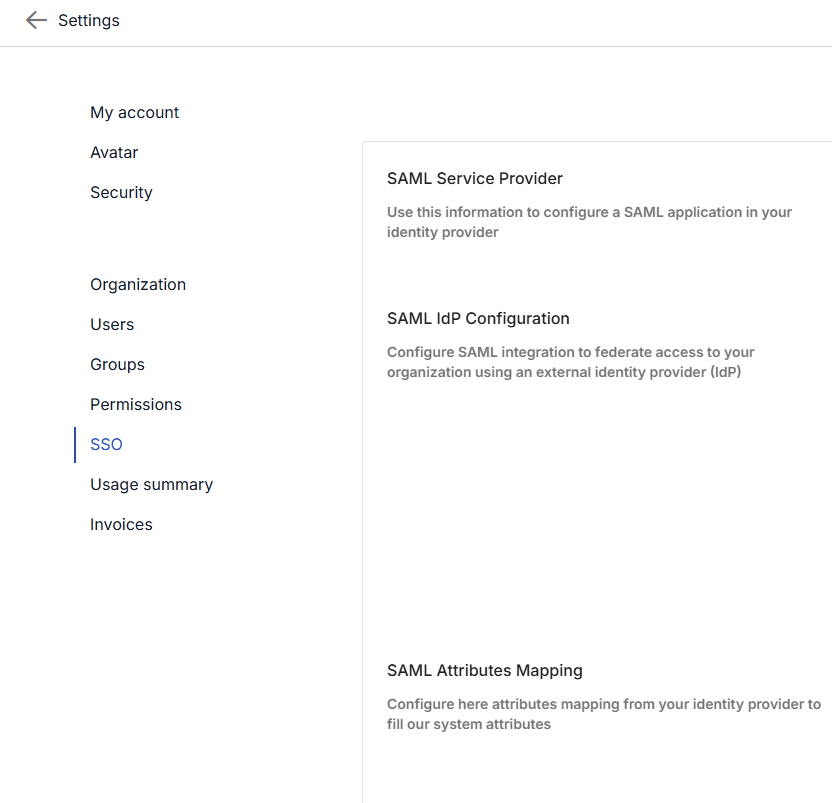
Go to the Settings tab
-
Select the SSO tab from the menu on the left
-
Copy the following values from the SSO tab and paste them into your IdP configuration:
-
Service Provider Endpoint
-
Service Provider Entity ID
-
-
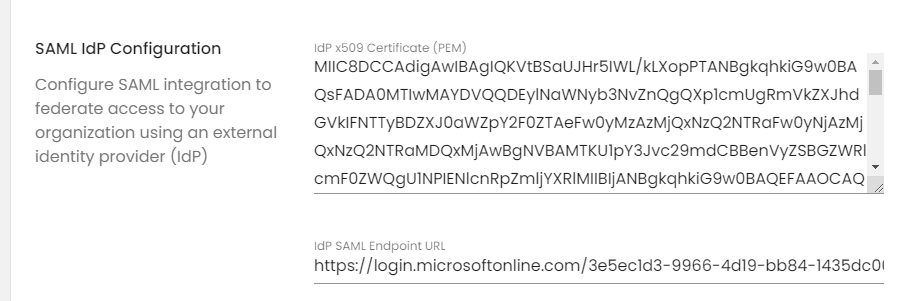
Retrieve the following from your IdP and enter them on the Prevu3D SSO tab:
-
SAML Certificate (PEM format)
-
SAML Endpoint URL
-
-
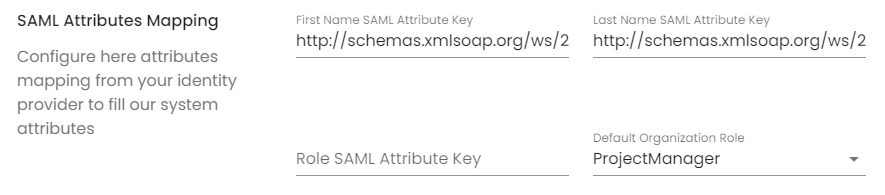
If SCIM is not enabled, define the following SAML attribute mappings:
-
First name
-
Last name
-
Role (optional — see Role Mapping below)
-
- Click Save at the bottom of the page.
- Perform a test sign-in from your IdP to verify the configuration.
Role Mapping (optional)
Section titled “Role Mapping (optional)”You can assign Prevu3D organization-level roles via a custom SAML attribute (e.g., Prevu3DRole):
-
Admin— Full permissions across the company -
Guest— No default access (must be granted at the project level)
If no role attribute is provided, a default role is applied. For security reasons, we recommend setting this to Guest.
Group Mapping (optional)
Section titled “Group Mapping (optional)”It is also possible to map groups from your IdP system to Prevu3D groups to simplify access management for people in your organization. The following steps guide you through mapping your groups.
-
Configure your IdP to pass group memberships via a SAML attribute.
-
Enter this attribute on the Prevu3D SSO tab.
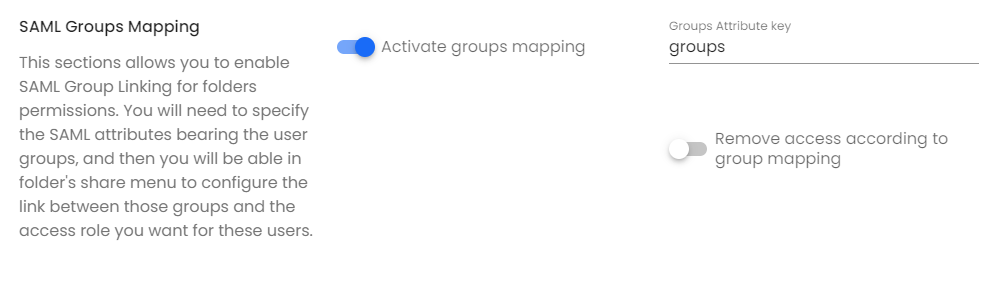
- In the “Groups” section of Prevu3D, click “Edit group” and specify the SAML group value expected by your IdP.
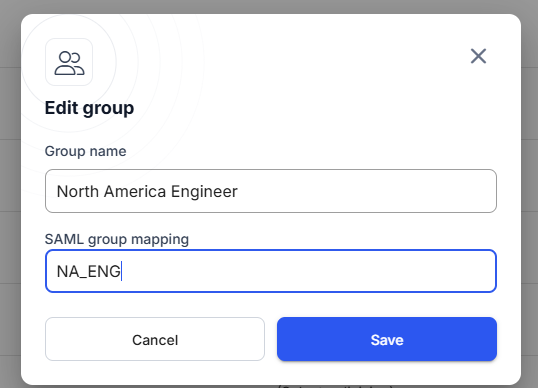
- This mapping is applied to users when they sign in to Prevu3D Cloud. If the user is already signed in, they should sign out and sign back in for access changes to take effect.
SCIM 2.0 — Provisioning Setup
Section titled “SCIM 2.0 — Provisioning Setup”Prevu3D supports user and group provisioning via the SCIM 2.0 protocol (System for Cross-Domain Identity Management).
Prerequisites
Section titled “Prerequisites”-
Your organization must be on the Enterprise plan.
-
Your IdP must support SCIM (e.g., Azure AD/Entra, Okta, JumpCloud).
What SCIM enables
Section titled “What SCIM enables”-
User provisioning — New users are automatically created in Prevu3D
-
User deprovisioning — Users are disabled or removed when they are disabled in your IdP
-
Group assignment — Groups and roles can be centrally managed from your IdP
Setup Guide
Section titled “Setup Guide”-
Sign in to your Prevu3D account as an organization administrator.
-
Go to the Settings tab
-
Select the SSO tab from the menu on the left
-
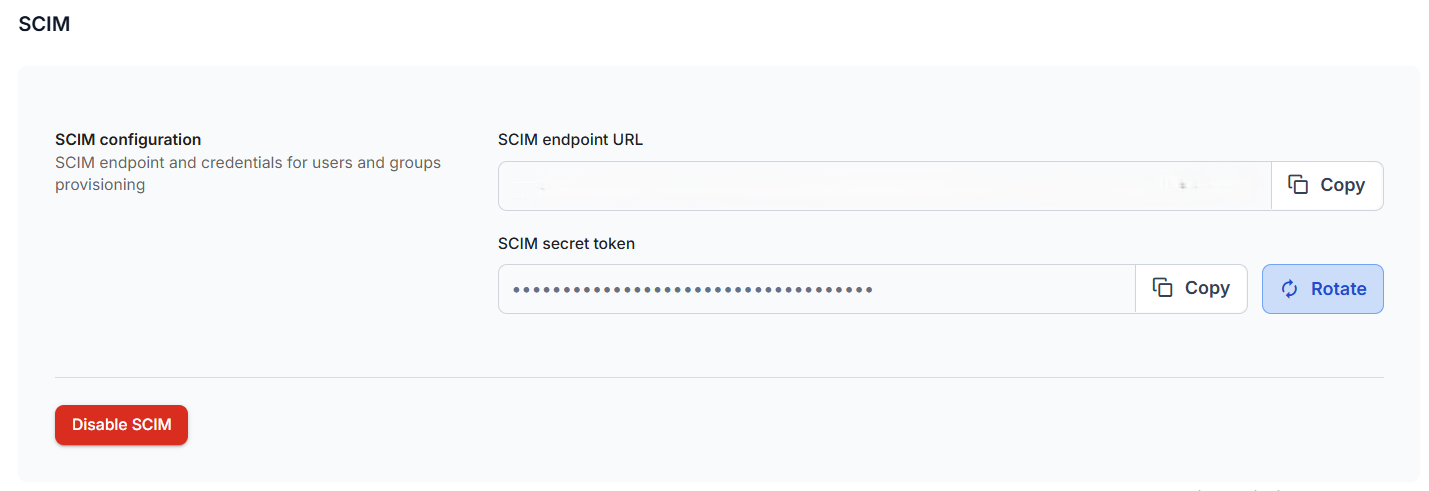
Scroll to the SCIM Provisioning section and enable it.

-
You will find:
-
SCIM Base URL (Entra ID users, please see the warning below)
-
Bearer Token
-
-
In your identity provider (e.g., Microsoft Entra ID):
-
Open the Prevu3D enterprise application.
-
Enable SCIM provisioning.
-
Enter the SCIM Base URL and Bearer Token obtained from the SSO tab.
-
-
Configure attribute mappings for:
-
userName,givenName,familyName,email -
Optional:
groups,roles,active
-
-
Save your configuration
Your IdP will now automatically sync users and groups with Prevu3D based on the provisioning schedule.
Definitions
Section titled “Definitions”-
IdP, Identity Provider: refers to the system that registers all users and enables connection to various other services. This is your source of truth for your organization, users, and groups. E.g.: Azure AD, JumpCloud…
-
SP, Service Provider: refers to the service application that consumes SSO information, in this case Prevu3D Cloud.
-
SSO, Single Sign-On: refers to a mechanism that allows users to obtain their credentials from a single portal and distribute user management configuration across multiple applications.
-
SAML, Security Assertion Markup Language: an industry-wide protocol that enables the use of SSO across multiple cloud-based platforms.
-
SCIM, System for Cross-Domain Identity Management: protocol for provisioning users and groups.