Object Management
RealityPlan tools allow you to place several objects to enhance your environment and reorganize your reality (such as annotations or 3D models). Here are some quick tips to facilitate the manipulation of these objects.
The object panel
Section titled “The object panel”The object panel allows you to visualize and edit your layout easily. All the objects you placed can be found in the panel. You can open/close it at any time by clicking on the arrow button in the top left corner of the panel.
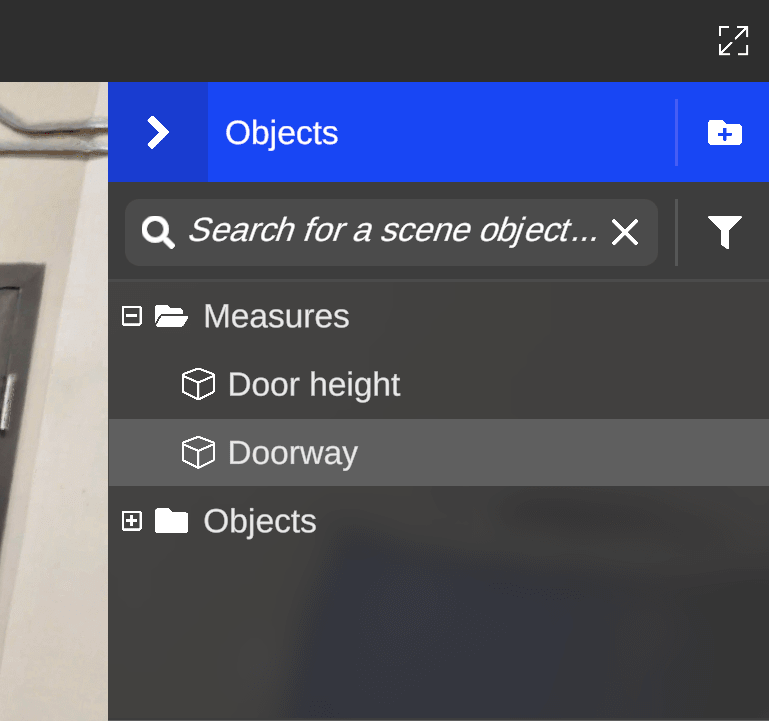
Object visualization and edition
Section titled “Object visualization and edition”Three buttons can be found at the right of each object:
| Actions | Description |
|---|---|
 Teleport Teleport | The teleport button teleports you directly to the object |
 / / Lock/unlock Lock/unlock | Allows you to lock/unlock an object so that it cannot be selected (except from the object panel) until you unlock it |
 Visibility Visibility | The eye button toggle the visibility of the object |
When selecting an object from the panel, its information panel opens on the settings tab. It allows you to adjust the object settings and perform common operations such as moving or deleting the object.
Properties tab
Section titled “Properties tab”Within the information panel of 3D assets, you’ll find an additional tab labeled Properties. This tab allows you to append and modify properties on your assets, enhancing your ability to effectively manage your space.
Folders
Section titled “Folders”Folders allow you to categorize your layout objects by a simple drag and drop. You can create folders using the  button. You may also rename a folder using the contextual menu (right click) or the property panel.
-
Pressing the folder highlight button will highlight the objects contained inside the folder
-
Pressing the folder visibility button will toggle the visibility of all elements inside the folder
Search
Section titled “Search”If your layout becomes complex and contains several objects, the search bar and the filter system will help you quickly find what you’re looking for.
Also, using Ctrl+F shortcut will automatically open the object panel and focus on the search bar.
Multiple selection
Section titled “Multiple selection”You can simultaneously move a group of objects by holding Shift while pressing mouse left-click on the desired objects. If at least two objects are selected, a handle will appear for you to translate/rotate the group of objects.
Copy/Paste
Section titled “Copy/Paste”To duplicate an object or a group of objects :
-
Select an object or a group of objects by using the multiple selection above
-
Press
Ctrl + Con your keyboard to copy the selection. -
Move your mouse to the desired location of the paste
-
Press
Ctrl + Vto paste the selection -
You may also use
Ctrl + Xto cut the selection
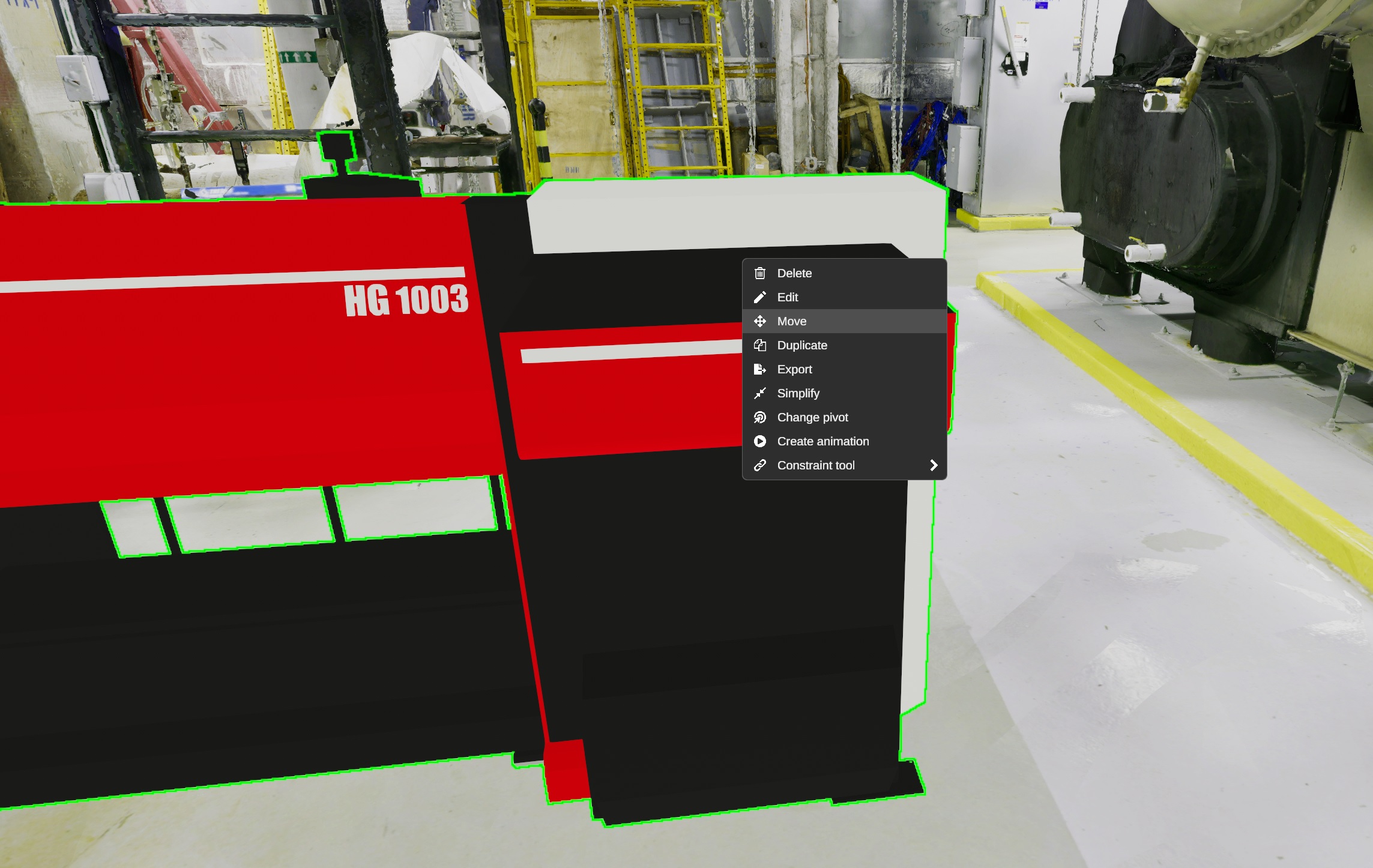
Contextual menu
Section titled “Contextual menu”Right-clicking on objects and elements placed in your space displays a contextual menu, allowing you to reach your main actions more efficiently. If the object is part of the scene, it must be selected before using the right click, in order to open the context menu.