
User Guide
RealityConnect for Nx is designed to bridge the gap between high-fidelity digital twins and your BIM environment. It allows you to stream large-scale reality capture data directly into Nx without draining system resources and provides a streamlined interface for asset management.
Accessing your data
Section titled “Accessing your data”To access your data, you must first establish a connection to Prevu3D.
-
In Nx, click the Connect button in the Prevu3D ribbon.
A web browser will open and redirect you to the Prevu3D authentication page. -
In your web browser, sign in to your Prevu3D account if required.
-
In the web browser, authorize the plugin to access your organization’s data.
-
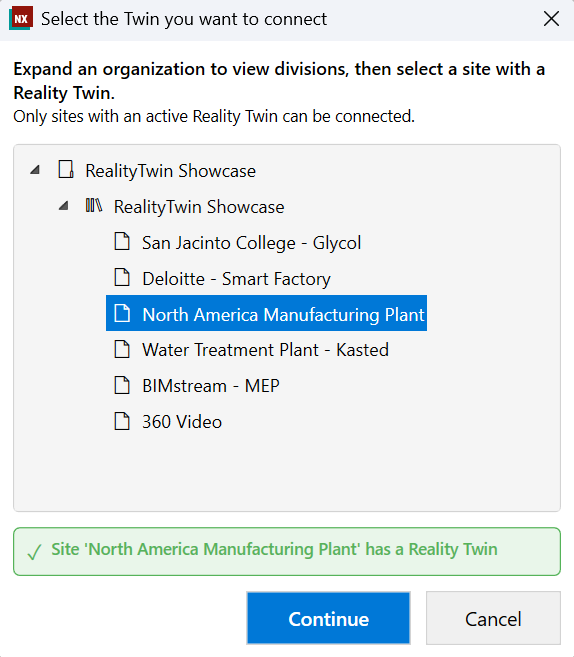
Back in Nx, select:
-
your Organization,
-
then the Division,
-
then the Site that contains the desired RealityTwin.
-
-
Click Continue to confirm the connection.
-
Once connected, the Environment and Asset buttons will become available.
Environment Display
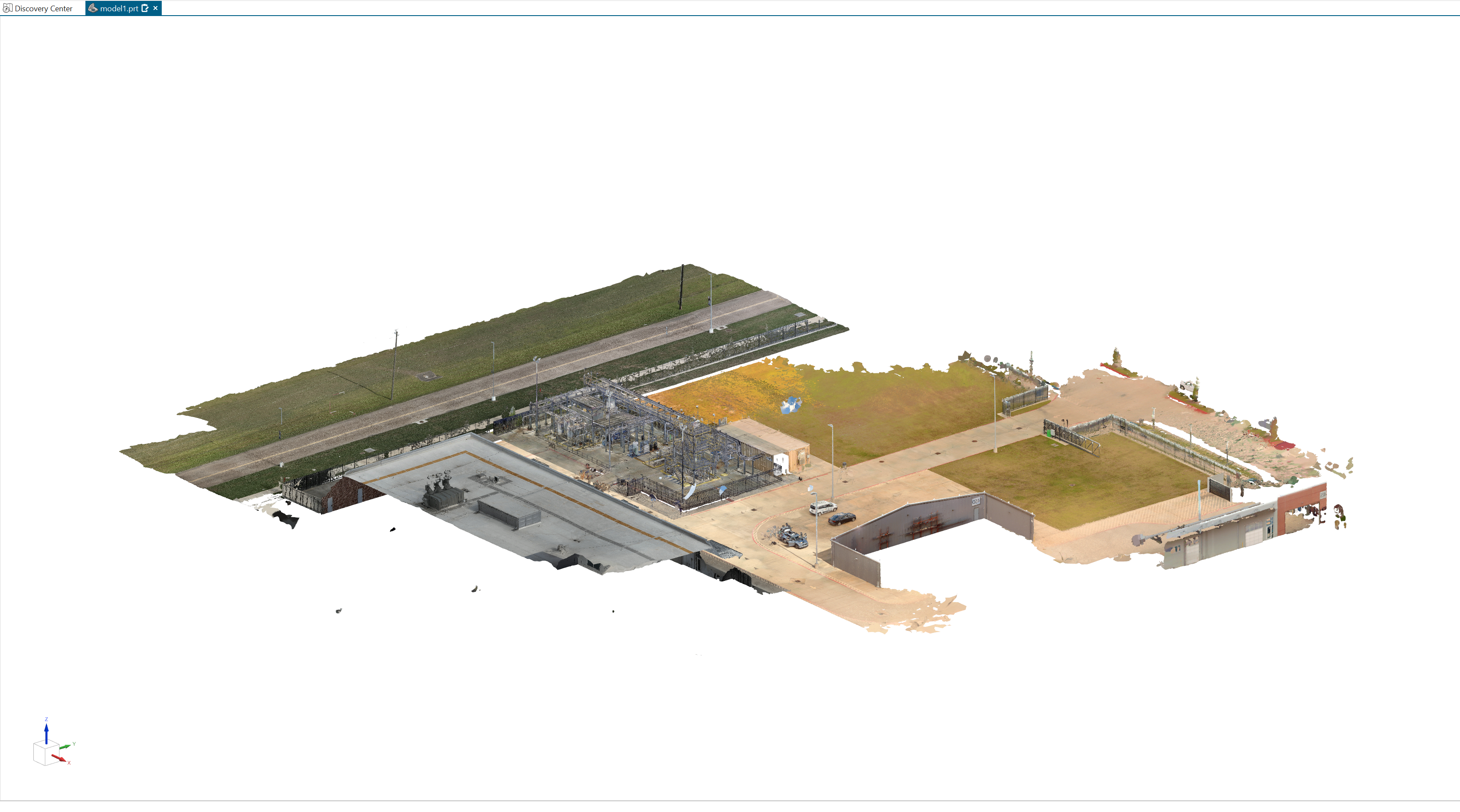
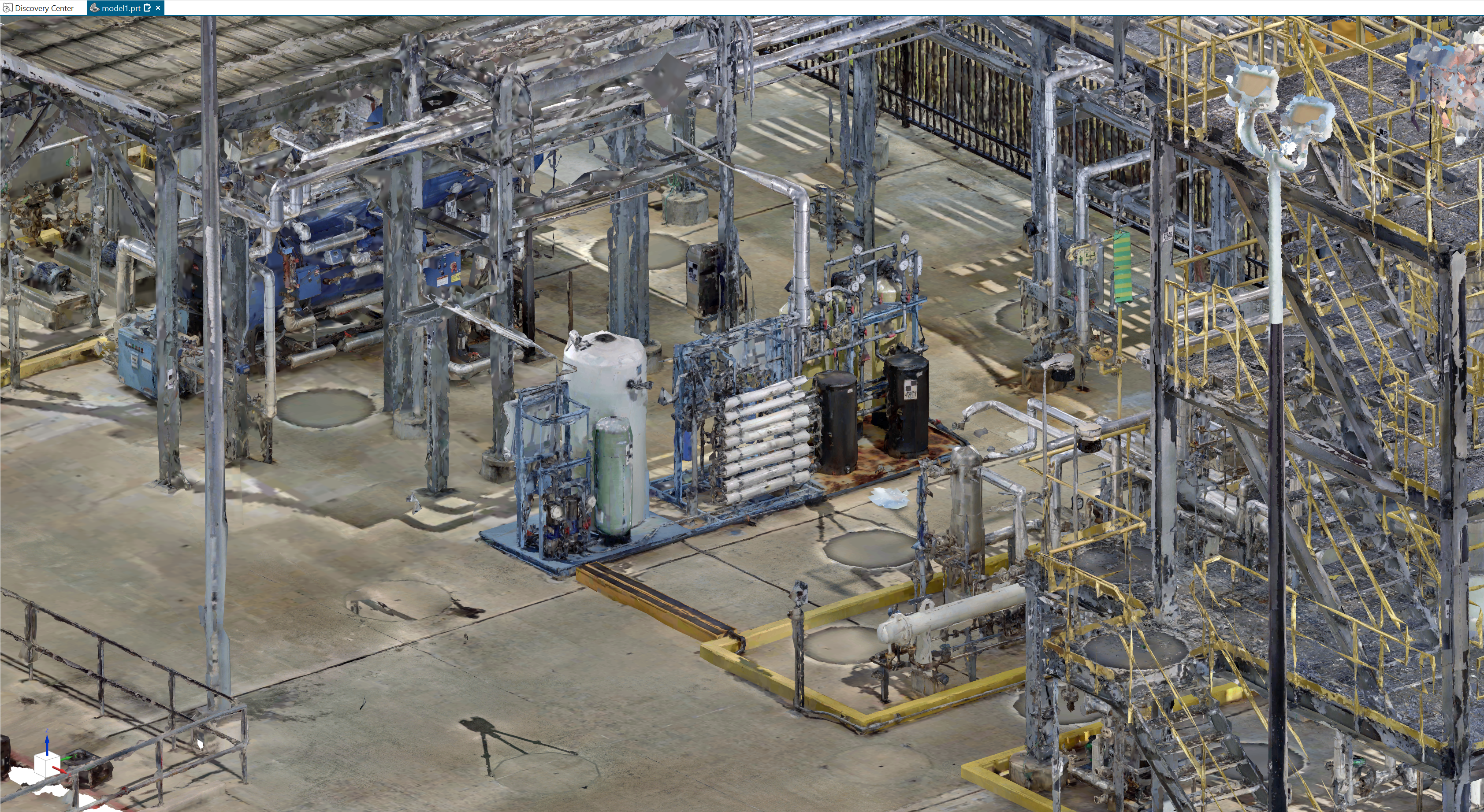
Section titled “Environment Display”The Environment Display tool streams the selected RealityTwin directly into the active 3D view, providing immediate site context for your project.
-
Show / hide environment
Click Display Environment to stream and display the environment in the current view.
Once active, the button changes to Hide Environment, allowing you to remove the environment overlay with a single click. -
In-memory streaming
The environment is streamed entirely in memory, without creating or loading files on disk, ensuring fast interaction and minimal impact on system resources. -
View-dependent refinement
The scene is progressively refined based on the camera position in orthographic views, improving visual quality where it matters while maintaining smooth performance.
For details about rendering options, HLOD behavior, and performance limits, refer to the Environment Settings documentation.
Asset Manager
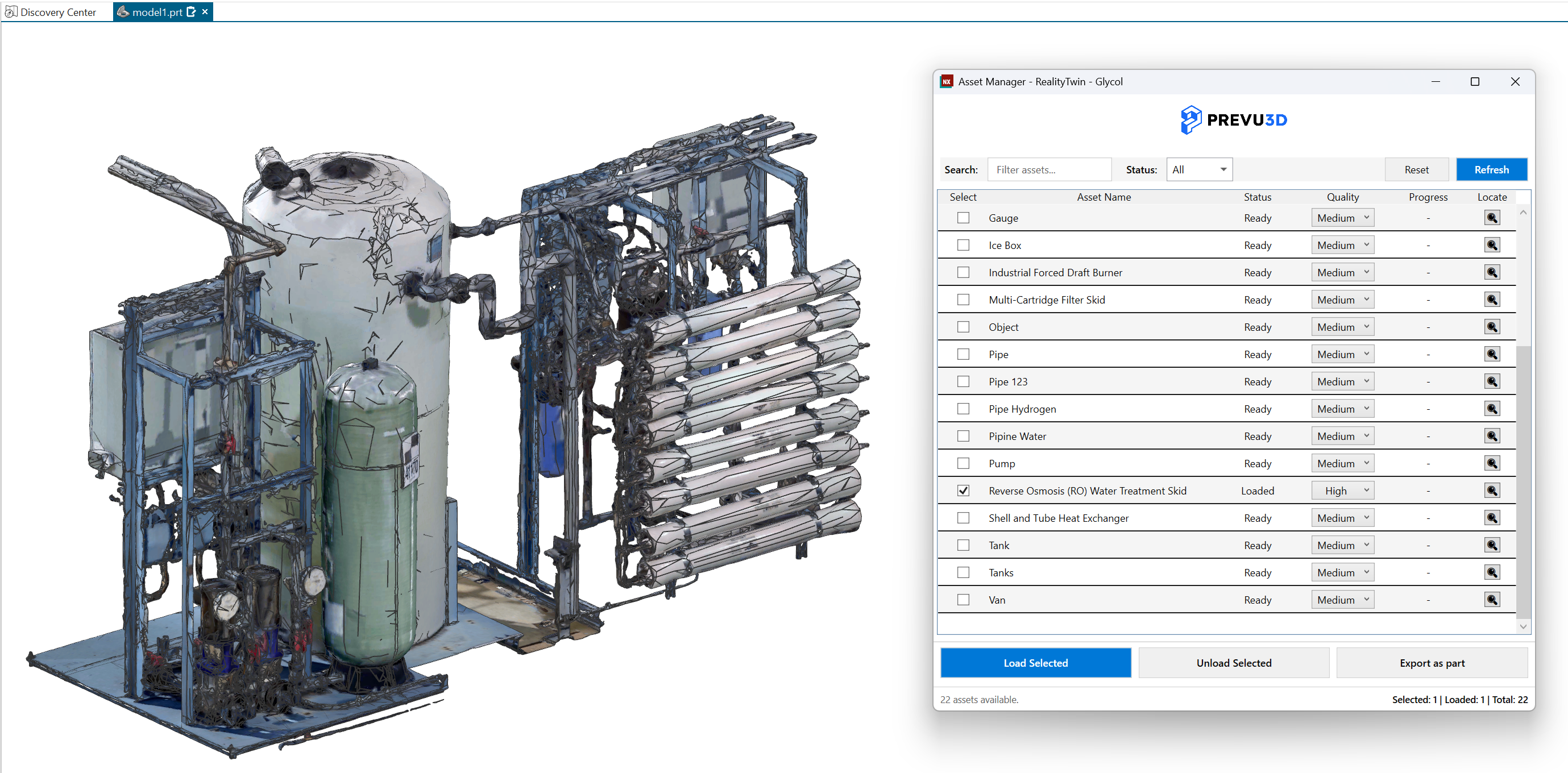
Section titled “Asset Manager”The Asset Manager allows you to browse, manage, and import assets from the selected RealityTwin into your Nx model.
Asset operations
Section titled “Asset operations”-
Load Selected
Load the selected assets into the active Nx view. -
Unload Selected
Remove the selected assets from the scene if they are currently loaded. -
Export as part
Export the selected assets as Nx parts.
Exported parts are available on the disk next to the current project file. -
Locate
Move the camera to focus on the selected asset.
The asset must be loaded in the scene for this action to be available.
Global actions
Section titled “Global actions”-
Refresh
Reload the asset list from the RealityTwin to synchronize the panel with the latest data. -
Reset
Restore the Asset Manager to its default state.
Asset filtering
Section titled “Asset filtering”-
Search
Filter assets by name. -
Status filter
Filter assets based on their current state.
Operation feedback
Section titled “Operation feedback”-
Progress column
Displays the progress of ongoing operations for each asset. -
Status summary
Displays the number of available, selected, and loaded assets.
For configuration options such as asset quality, positioning, and import behavior, refer to the Asset Settings documentation.
Settings
Section titled “Settings”Use the Settings menu to customize the behavior, performance, and appearance of the Prevu3D plugin.
Settings are organized into three main sections: General, Environment, and Assets.
General
Section titled “General”General settings control the overall behavior and appearance of the plugin.
-
Theme
Select the visual theme of the plugin:-
Light
-
Dark
-
Same as Windows
-
-
Texture overlay
Checkbox that defines whether or not to display textures
Environment
Section titled “Environment”Environment settings control how the RealityTwin is streamed and displayed in the 3D view.
-
Triangle Budget
Sets the target level of geometric detail for the streamed environment.
Higher values increase visual fidelity but require more system resources. -
Frame Time Budget
Controls navigation smoothness by limiting the amount of processing time per frame.
Lower values prioritize responsiveness during camera movement, potentially reducing visible detail while navigating. -
System Statistics
Displays real-time performance indicators, including:-
Triangle Count
-
Last Frame Time
These metrics help evaluate whether the current environment settings are appropriate for your hardware and performance expectations.
-
Assets
Section titled “Assets”Asset settings define how individual objects are loaded and imported into Nx.
Asset quality levels
Section titled “Asset quality levels”Each asset quality level is defined by a target triangle count, allowing you to balance visual detail and performance.
-
Low Quality Triangles
Sets the maximum number of triangles used for assets loaded at low quality. -
Medium Quality Triangles
Sets the maximum number of triangles used for assets loaded at medium quality. -
High Quality Triangles
Sets the maximum number of triangles used for assets loaded at high quality.
Each value can be reset individually to its default.
Default asset behavior
Section titled “Default asset behavior”- Default Quality
Defines the quality level used by default when loading assets.